

We have all been there. You are packing the car for a long road trip or preparing for a cross-country flight, and you realize you need to download movies to keep the kids entertained. You grab their Amazon Fire HD Kids Tablet, open the Prime Video app, and... you hit a wall.
Amazon's strict parental controls are fantastic for safety, but they make downloading a simple episode of Peppa Pig or Paw Patrol incredibly frustrating. Because of how the "Amazon Kids" sandbox is designed, you cannot simply download a movie while logged into the child's profile.
In this comprehensive guide, we will walk you through the exact 3-step process to download Prime Videos and successfully share them to your child’s screen. Plus, we will show you an expert workaround using TuneBoto to fix the dreaded "Storage Full" error using a MicroSD card.
Table of Contents
Why Can’t I Just Download Movies Directly in the Kids Profile?
To understand the fix, you need to understand the tablet's architecture. The Amazon Kids Profile is a locked-down environment. It restricts in-app purchases, web browsing, and direct downloading from streaming apps to prevent accidental charges or exposure to mature content.
The Golden Rule for Fire Tablets: Download in the Adult Profile ➔ Authorize the Content ➔ Watch in the Child Profile.
The Official 3-Step Method: Adding Prime Video to a Child's Profile
Before you begin, ensure your tablet is connected to a strong Wi-Fi network and that you have an active Amazon Prime subscription.
Step 1: Download from the Adult (Parent) Profile
- 1. Unlock the Fire Tablet and enter your PIN to access the Adult Profile.
- 2. Open the Prime Video app.
- 3. Search for the family-friendly movie or TV show you want.
- 4. Tap the Download button. Wait for the download to complete 100%.
Step 2: Share via "Add Content"
Now that the video is saved to your tablet, you need to give your child permission to see it.
- Step 1. Go back to the tablet's home screen and open the Settings app (the gear icon).
- Step 2. Scroll down and tap on Profiles & Family Library.
- Step 3. Select your child’s profile name.
- Step 4. Tap Add Content, then select Share Content.
- Step 5. Navigate to the Video tab. You will see a list of your downloaded movies.
- Step 6. Check the box next to the videos you want to share, then tap Done.
Step 3: The Crucial Offline Verification
⚠️ Do not skip this step before leaving the house!
- 1. Switch back to your Child's Profile.
- 2. While still connected to Wi-Fi, open the Videos tab or look under the Added to You section on their home screen.
- 3. Tap the movie to ensure it plays.
Why this matters: The Fire Tablet needs a momentary internet connection to sync the new DRM (Digital Rights Management) license to the child's profile. If you skip this, the movie might show an error when you are offline on an airplane.
Tablet Storage Full? How to Move Videos to a MicroSD Card
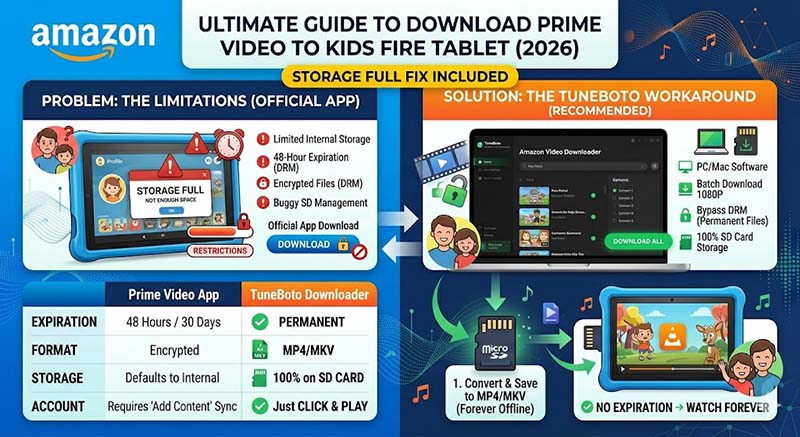
Most Kids Fire Tablets come with only 16GB or 32GB of internal storage, which fills up incredibly fast after downloading just a few HD movies. While you can insert a MicroSD card, the Prime Video app's DRM restrictions often make SD card management buggy, and downloaded videos will automatically "expire" after 48 hours of offline viewing.
If you are dealing with constant storage errors or want movies that never expire, there is a much better solution.
The Ultimate Fix: TuneBoto Amazon Video Downloader
Instead of wrestling with the tablet's internal storage, you can use TuneBoto Amazon Video Downloader on your PC or Mac. TuneBoto is a professional tool that allows you to download Prime Video titles directly to standard MP4 or MKV files, bypassing the strict DRM restrictions and 48-hour expiration timers.
Amazon Video Downloader
-
Download Prime movies & TV shows to Mac/Windows

-
Support downloading Prime Video to MP4/MKV
-
Keep audio tracks and subtitles
-
Download videos in batch at a fast speed
-
Free upgrade and technical support
Prime Video App vs. TuneBoto (MicroSD Storage)
| Feature | Official Prime App | TuneBoto Downloader |
|---|---|---|
| Offline Expiration | Expires in 48 hours / 30 days | Never expires (Permanent) |
| File Format | Encrypted (Only plays in app) | Universal MP4 / MKV |
| Storage Control | App often defaults to internal storage | 100% stored on SD Card |
| Account Switching | Requires "Add Content" syncing | Just click and play |
How to Use TuneBoto to Expand Your Child's Library:
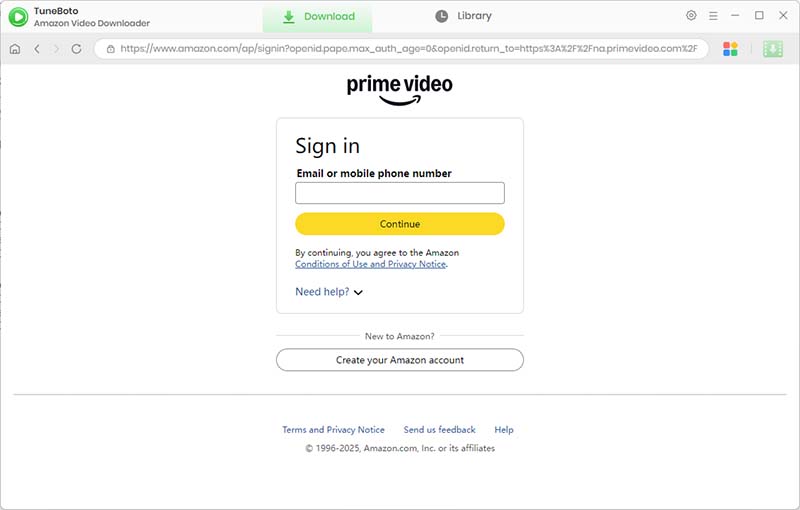
Step 1. Download on PC/Mac: Open TuneBoto on your computer, log into your Amazon account, and search for your child's favorite shows.
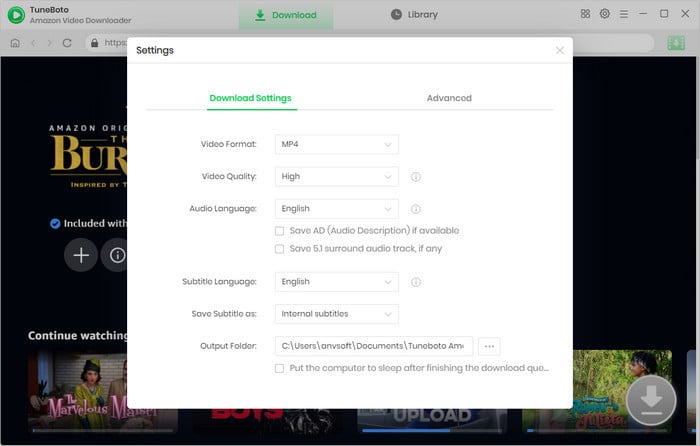
Step 2. Customize Settings: Click the gear icon to set the output format as MP4, so it is fully compatible with the Fire Tablet.
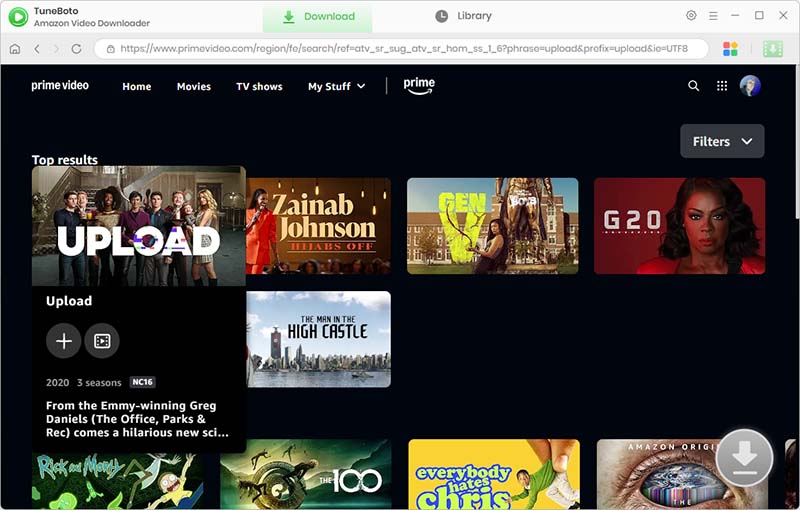
Step 3. Download the Video: Click the green download button. TuneBoto will save the videos as permanent MP4 files to your computer.
Step 4. Transfer to SD Card & Insert into Fire Tablet: Insert your MicroSD card into your computer and drag-and-drop the downloaded MP4 files directly onto the card. Pop the MicroSD card into the Fire Tablet. Because these are standard video files, you can use a basic media player app (like VLC for Android, which you can authorize in the Kids Profile) to play them.
Troubleshooting Common Offline Errors
- "I shared the video, but my kid can't see it."
Make sure the movie is actually included in Prime. If you rented the movie, Amazon's strict rental DRM often prevents it from being shared to a secondary Kids profile. - "The video disappeared during our trip!"
If you used the official app, you likely hit the offline viewing limit. Once you hit "Play" on a downloaded Prime video without internet, you have exactly 48 hours to finish watching it before it locks. (This is another reason why exporting permanent files via TuneBoto is highly recommended for long vacations).
Conclusion
Getting Prime Video onto a Kids Fire Tablet requires jumping through a few hoops, but by following the "Download ➔ Share ➔ Verify" method, you can ensure a tear-free travel experience.
And if you find yourself constantly battling the "Storage Full" warning or expiring downloads, investing in a MicroSD card and a tool like TuneBoto will save you hours of technical headaches. Safe travels and happy watching!