
 Free Download
 Buy Now
 Free Download
Disney Plus has become a favorite streaming platform for millions of viewers, offering popular entertainment collections including Marvel movies, Pixar animations, Star Wars series, Disney classics, and family-friendly content. While Disney+ provides an official download feature for offline viewing, many users search for Disney Plus Video to USB because they want more flexibility with their downloaded content.
For example, users may want to save videos for a long trip, watch movies on a Smart TV without an internet connection, or organize a personal offline media collection. However, Disney+ official downloads are designed to work only inside the Disney+ app and cannot simply be copied as regular video files to a USB drive.
This guide explains how Disney Plus downloads work, why transferring Disney+ videos to USB is challenging, and what options are available for users who want a more flexible offline viewing experience.
Can You Transfer Disney Plus Videos to USB?
Many users assume that after downloading a movie or episode from Disney+, they can locate the downloaded file and copy it to a USB drive. However, Disney+ offline downloads work differently from normal video files.
The official Disney+ download feature stores content inside the Disney+ application environment. These downloaded files are protected and managed by the app, which means they are not available as standard MP4, MKV, or other playable video files that can be moved freely between devices.
Because of these restrictions, you cannot directly drag Disney+ downloaded movies from your phone, tablet, or computer to a USB drive like ordinary videos.
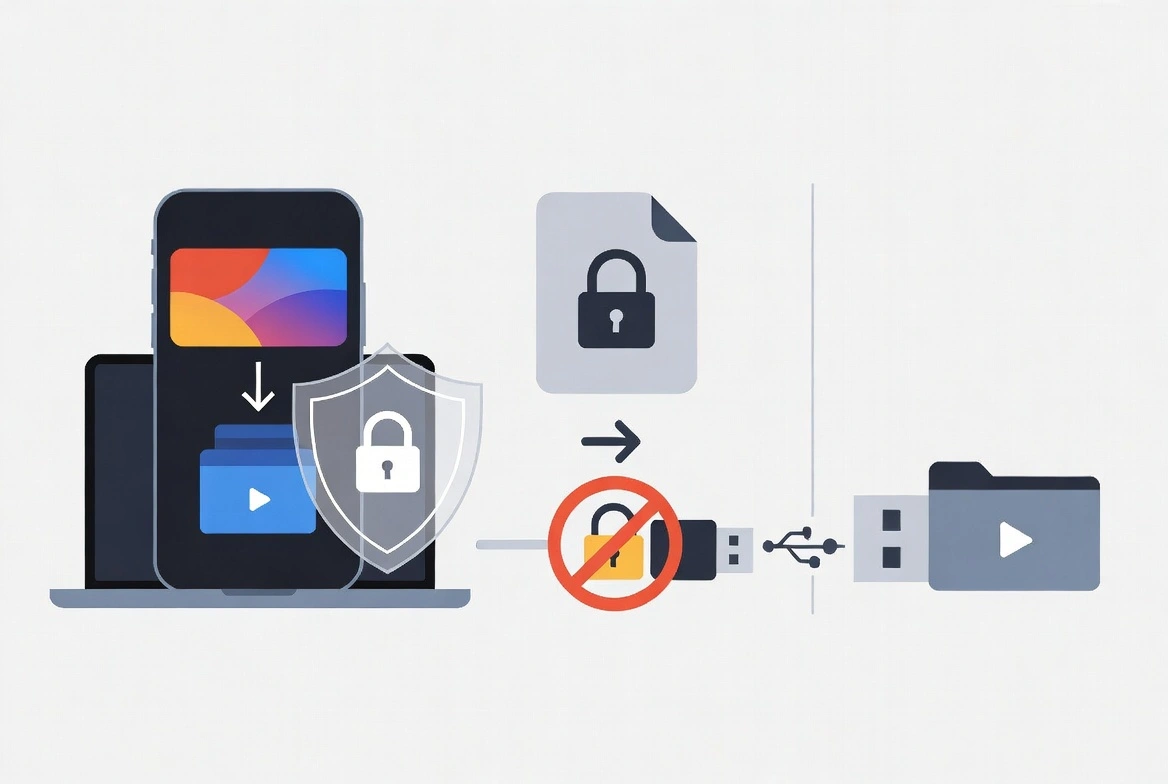
The main reason for this limitation is that streaming platforms use protected offline playback systems to manage content licenses. When you download a title through the Disney+ app, the app verifies your account status and playback permissions before allowing offline viewing.
This approach provides a convenient way to watch Disney+ content without an internet connection, but it also limits how downloaded videos can be managed.
Why Disney Plus Downloads Cannot Be Copied Like Normal Videos
Unlike regular video files stored on a computer, Disney+ offline downloads are connected to several restrictions:
- App-based playback: Downloaded content can only be opened through the Disney+ application.
- Limited file access: Users cannot browse and copy downloaded movies as normal video files.
- Device restrictions: Offline content remains associated with supported devices and accounts.
- Content availability: Download access depends on Disney+ subscription status and content licenses.
These restrictions explain why many users search for solutions related to Disney Plus movies to USB or save Disney Plus videos to USB drive. They are not only looking for downloads; they want a way to manage their favorite movies and shows more freely.
Why Users Want Disney Plus Videos on USB Drives
The search term Disney Plus Video to USB reflects a common need among streaming users: they want more control over how and where they watch their favorite content. While Disney+ provides convenient online streaming and official offline downloads, many viewers prefer having a more flexible way to enjoy their personal entertainment collection.
A USB drive is still one of the simplest ways to store and move video content. It can be connected to many devices, including Smart TVs, media players, laptops, and home entertainment systems. For Disney+ users, saving videos to a USB-compatible format represents the idea of creating a personal offline viewing library that is not limited to a single application.
Watch Disney+ Movies on Smart TVs Without Internet Restrictions
One of the biggest reasons users look for Disney Plus videos on USB drives is Smart TV playback. Many modern TVs support USB media playback, allowing users to connect a USB drive directly and watch compatible video files without opening a streaming app.
This is especially useful for families who enjoy Disney content together. Instead of depending on an internet connection, app availability, or account login, users can prepare their offline entertainment collection and play videos directly through supported devices.
Popular Disney+ categories that users may want to organize for home entertainment include:
- Marvel superhero movies and series
- Star Wars films and original shows
- Pixar animated movies
- Disney animated classics
- Family and kids entertainment
Enjoy Disney+ Content During Travel and Offline Situations
Another major reason users search for Disney Plus video transfer options is travel. Long flights, road trips, hotel stays, and locations with unstable internet connections can make streaming difficult.
Although Disney+ offers offline viewing through its mobile app, users may prefer a more flexible solution when switching between devices. For example, a family may want to prepare entertainment on a laptop, portable media player, or TV system during a vacation.
Offline video management becomes especially valuable when:
- Traveling to areas with limited internet access
- Using devices without the Disney+ app
- Watching movies on larger screens
- Managing entertainment for family members
Create a Personal Disney Offline Video Library
For many Disney fans, movies and series are more than temporary entertainment. Collections such as Marvel, Pixar, and Star Wars often represent long-term favorites that viewers want to revisit multiple times.
This creates another reason behind searches like Disney Plus movies to USB. Users are interested in organizing their favorite content in a personal media library where they can easily access their selected movies and shows.
A personal offline video library can provide benefits such as:
- Organizing favorite movies and series in one place
- Managing entertainment for different family members
- Watching content on preferred devices
- Reducing dependence on internet availability
However, creating a flexible offline library requires understanding the difference between official streaming downloads and regular video files. Disney+ downloads are designed for app-based playback, while users searching for USB solutions are usually looking for broader compatibility and easier media management.
Disney+ Offline Viewing Needs Beyond Mobile Downloads
The popularity of the Disney Plus Video to USB search term shows that streaming users are moving beyond simple app downloads. They are looking for a more traditional way to manage digital entertainment, similar to how people organized DVD collections or personal video libraries in the past.
Modern viewers want convenience across multiple devices. A movie saved for offline use may need to be viewed on a computer today, a television tomorrow, or another compatible device during travel.
This shift from platform-based viewing to flexible media management is why topics such as Disney Plus to MP4, Disney Plus offline viewing, and Disney Plus video transfer continue to attract user interest.
Disney+ App Downloads vs USB Video Files
Before transferring streaming videos to USB devices, it is important to understand the difference between app-based downloads and standard video files.
| Feature | Disney+ App Downloads | USB Video Files |
|---|---|---|
| Playback Location | Disney+ App Only | Multiple Compatible Devices |
| File Access | Encrypted App Storage | Standard Video File Access |
| Internet Requirement | Offline inside Disney+ App | No Streaming Connection Required |
| Device Compatibility | Limited to Supported Disney+ Apps | TVs, Computers, Media Players |
| USB Transfer | Not Supported | Supported |
How to Watch Disney Plus Videos from USB
To understand whether Disney Plus videos can really be transferred to a USB drive, we tested the complete offline playback process ourselves.
During our test, we first tried using the official Disney+ download feature. Although Disney+ allows subscribers to download selected movies and shows for offline viewing inside the app, these downloads cannot be accessed as normal video files or transferred to a USB drive.
To achieve a more flexible USB playback workflow, we tested another approach: preparing a compatible video file, transferring it to a USB drive, and playing it directly on a supported device.
Our Tested Disney Plus to USB Workflow
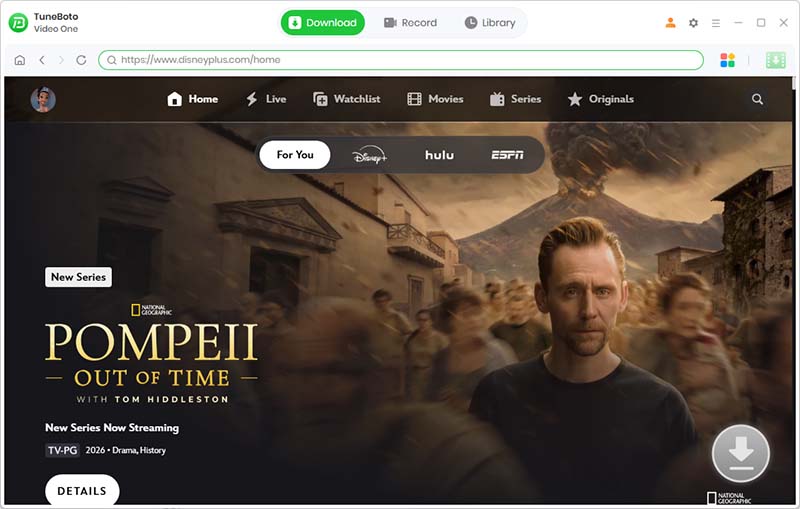
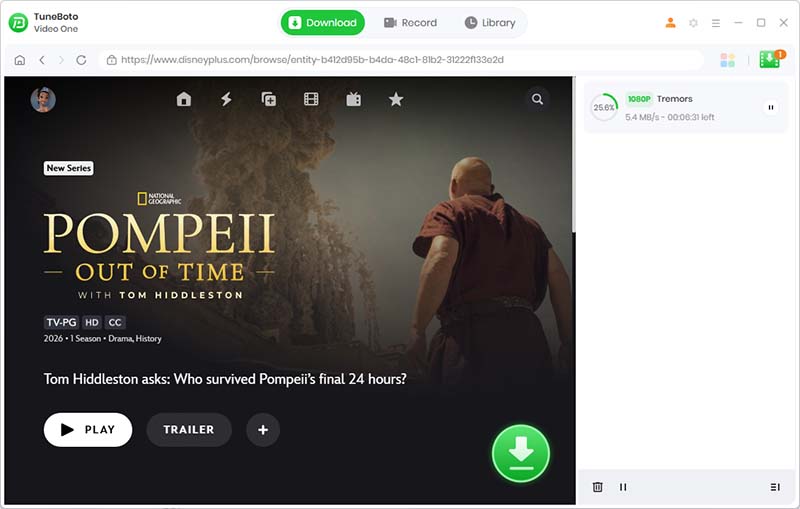
Based on our hands-on test, the complete process to download Disney Plus videos for USB playback with TuneBoto Video One includes the following steps:
-
Choose a Disney Plus Movie or Show
Select the content you want to prepare for offline viewing. Popular choices include Disney Classics, Marvel movies, Pixar animations, and Star Wars titles. -
Prepare the Offline Video File
In our test, we used TuneBoto Video One to prepare the video file instead of relying on Disney+ app downloads. The software saves the video as a standard playable file format suitable for offline management. -
Download and Verify Video Quality
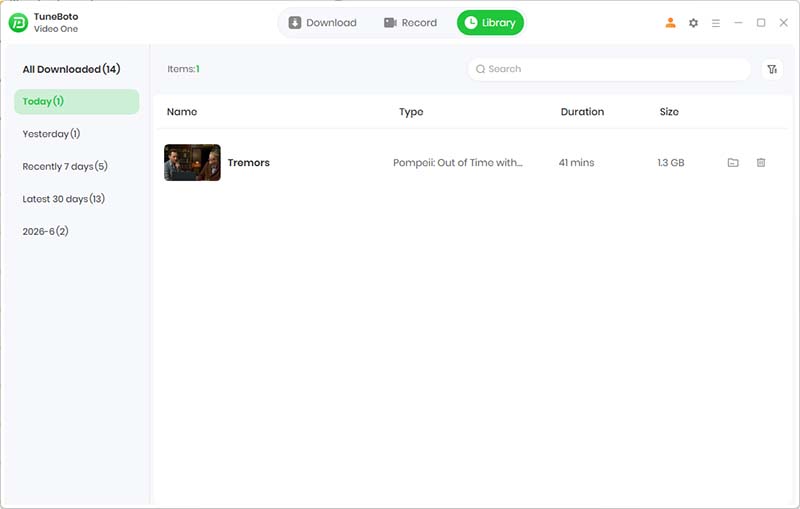
After the download process was completed, we checked the output video file to make sure the format and playback quality were suitable for USB storage and external devices. -
Transfer the Video File to a USB Drive
The downloaded video file was copied directly to a USB flash drive. Unlike Disney+ app downloads, standard video files can be organized, stored, and moved between compatible devices. -
Play the Video from USB Storage
Finally, we connected the USB drive to a compatible smart TV and media player to test offline playback without opening the Disney+ app.
Test Result: Disney+ Download vs USB Playback
| Test Item | Disney+ App Download | TuneBoto Video One Workflow |
|---|---|---|
| Video File Access | Stored inside Disney+ app only | Saved as a regular video file |
| USB Transfer | Not available | Can be transferred to USB storage |
| Playback Device | Disney+ supported app only | Compatible TV, computer, and media players |
| Offline Management | Limited by app restrictions | Flexible file organization |
Our test shows that the official Disney+ download feature is designed for temporary offline viewing inside the app, while a USB-based playback experience requires a different video management workflow.
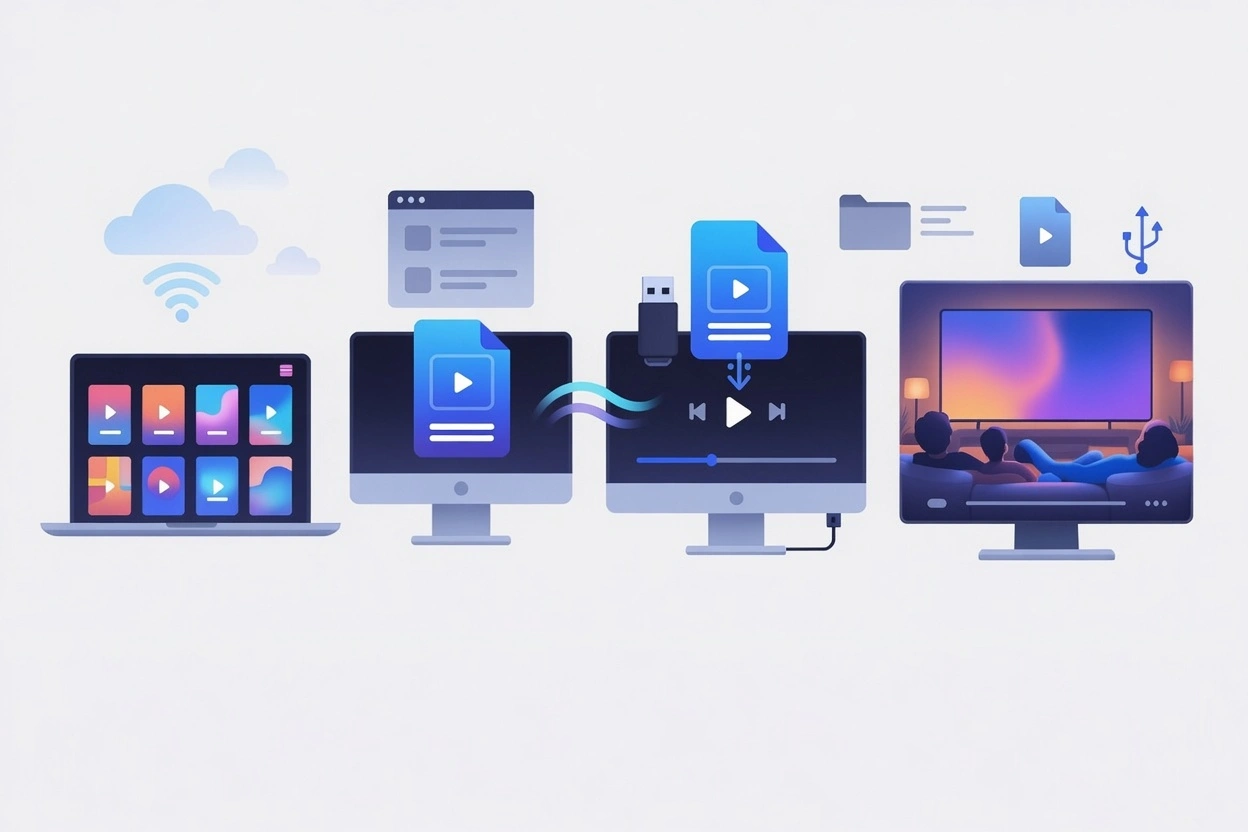
Choosing the right video format is important because different TVs and media players support different file types.
Best Video Formats for USB Playback
When preparing videos for USB playback, MP4 is usually the most widely supported format. It works well with most smart TVs, computers, and portable media devices.
| Format | Best Use |
|---|---|
| MP4 | Most TVs, computers, smartphones, and media players |
| MKV | Advanced media players and users who need flexible codec support |
| MOV | Apple ecosystem devices and compatible players |
For the widest compatibility, MP4 is generally the preferred choice for USB video playback because many televisions and devices support this format directly.
Build Your Disney Offline Video Library
Disney Plus is more than a streaming service. It is a collection of iconic entertainment universes that many fans enjoy revisiting over time.
Instead of searching for individual titles every time, some users prefer to organize their favorite movies and shows into a personal offline media library.
Marvel Universe
Create a collection of superhero movies and stories from the Marvel Universe, including popular characters and cinematic adventures.
Pixar Animation
Keep favorite Pixar movies organized for family movie nights and repeat viewing.
Star Wars
Store Star Wars movies and series together as a dedicated science-fiction collection.
Disney Classics
Preserve timeless Disney animated classics and family entertainment favorites in one organized collection.
A well-organized personal media library gives users more control over how they manage and enjoy their favorite entertainment.
A More Flexible Way to Manage Streaming Videos
For users who want more flexibility beyond app-based offline viewing, TuneBoto Video One provides a unified solution for managing streaming content from multiple platforms.
It helps users organize streaming videos from different services and prepare content for more convenient offline entertainment experiences.
Whether you enjoy Disney movies, streaming originals, anime, or other online entertainment, a flexible video management tool can help create a more convenient offline viewing experience.

