How to Convert Disney Plus Videos to MP4 (Step-by-Step Guide)
Disney Plus allows offline viewing within its official mobile app, but it does not offer a direct feature to export videos as standard .mp4 files. To watch Disney+ content on any device without expiration dates, you need a specialized tool to decrypt and convert the video stream into a universal format.
TL;DR Summary
Disney+ encrypts its downloads using DRM, preventing direct .mp4 exports. The most reliable solution is using TuneBoto Video One to log in, search, and save Disney+ videos directly to your Windows PC or Mac as DRM-free 1080p MP4 files with multi-language audio and subtitles intact.
Why Should You Convert Disney Plus to MP4?
Bypass Expiration Limits
Official app downloads expire after 30 days, or 48 hours once played. Converted MP4 files remain on your drive permanently.
Play on Any Device
Transfer MP4 files to USB drives, car screens, projectors, or smart TVs that lack the native Disney+ app.
Prevent Delisting
Streaming platforms frequently remove titles due to licensing changes. Local backups ensure you keep your favorite shows forever.
True Offline Viewing
Watch high-quality 1080p content during long flights, road trips, or remote camping trips without needing cellular data.
Method 1: The Best Way to Convert Disney Plus to MP4 via TuneBoto Video One
The cleanest and fastest method to save Disney+ videos as local MP4 files is using TuneBoto Video One. It is an all-in-one media downloading tool that strips DRM encryption from Disney+ videos while preserving full 1080p HD quality, 5.1 surround sound, and multi-language subtitles.
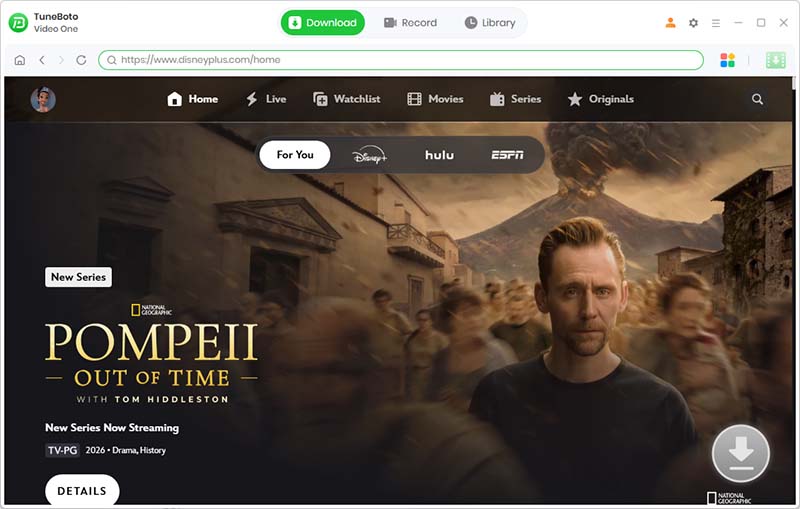
Launch TuneBoto Video One & Select Disney+
Download and install TuneBoto Video One on your Windows PC or Mac. Launch the program and choose Disney+ from the supported site list.
Choose MP4 as the Output Format
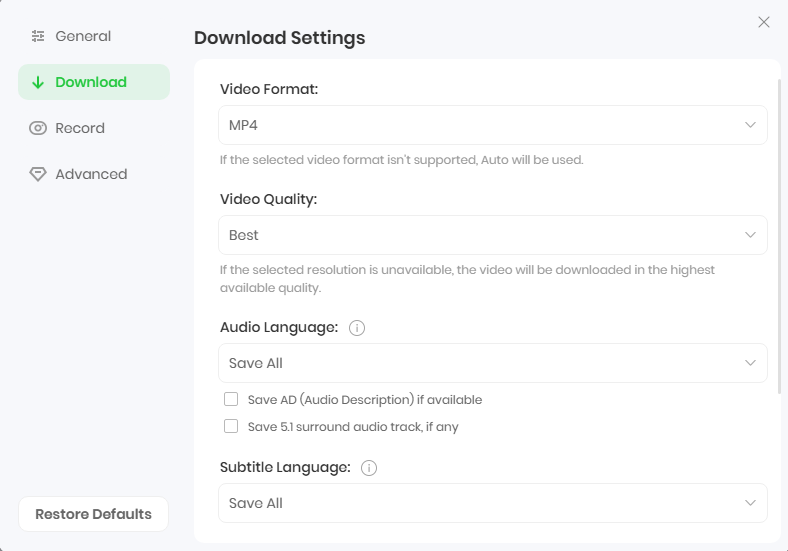
Click the Settings (Gear Icon) in the top-right corner. In the settings window:
- Set Output Format to MP4.
- Set Video Quality to High (up to 1080p).
- Select your preferred Audio Language (e.g., English, Spanish, French) and enable 5.1 Surround Sound.
- Choose your Subtitle Type (Internal, External, or Hardcode).
Search for Disney+ Movies or TV Shows
Type the title of the movie or show directly into TuneBoto's search bar, or copy and paste the video URL from your web browser. TuneBoto Video One will analyze the link and display all matching content instantly.
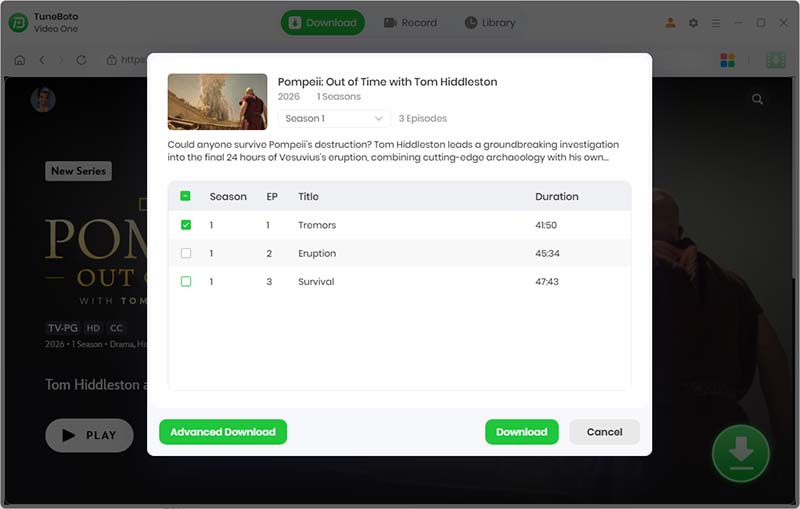
Start Converting Disney+ Videos to MP4
Click the blue Download icon next to the title. If downloading a TV series, select the specific episodes you want to export. TuneBoto will convert the selected videos to DRM-free .mp4 files at high speed and save them to your local folder.
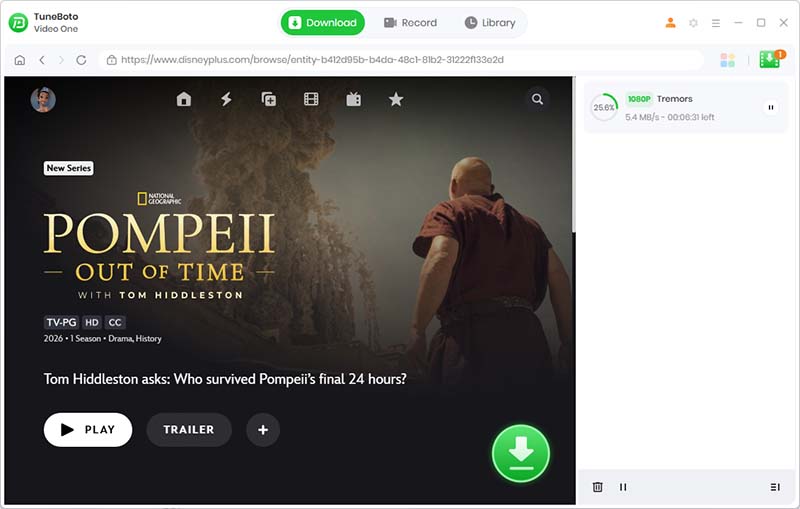
.srt subtitle tracks automatically.
Method 2: Can You Record Disney Plus to MP4?
While screen recording tools (such as OBS Studio or QuickTime) can theoretically record your screen, they are generally inefficient for capturing Disney+ videos:
- DRM Black Screen Issues: Digital Rights Management protection in web browsers often triggers a black screen during screen recording.
- 1:1 Real-Time Output: Recording a 2-hour movie takes 2 full hours with no option for batch downloading.
- Quality Loss: Accidental cursor movements, audio pops, or dropped frames during playback can corrupt the output recording.
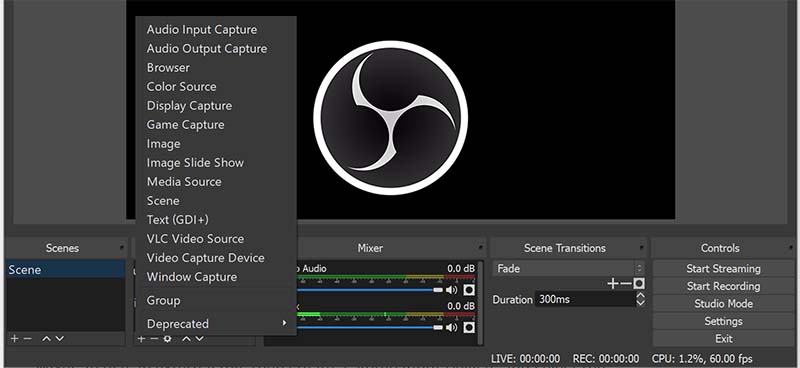
Comparison: TuneBoto Video One vs. Screen Recorders vs. Online Tools
| Feature | TuneBoto Video One | Screen Recorder (OBS) | Online Converters |
|---|---|---|---|
| Output Format | MP4 / MKV | MP4 / AVI / MOV | Unreliable / Limited |
| Max Resolution | 1080p HD | Screen-dependent | Low / Compressed |
| DRM Decryption | Automatic | Triggers Black Screen | Fails on DRM Streams |
| Conversion Speed | Batch / Multi-Speed | 1:1 Real-Time | Slow / High Failure |
| 5.1 Audio & Subtitles | Preserved | Current Track Only | None |
Frequently Asked Questions (FAQs)
Ready to Enjoy Disney+ Content Anywhere?
Download TuneBoto Video One today to extract DRM-free 1080p MP4 files with a single click.
 Download for Win
 Download for Mac

Gabrielle Miller | Senior Editor
You May Also Like
How to Download Netflix Movies to MP4 Format
Step-by-step guide to saving Netflix series and movies as DRM-free MP4 files for offline viewing on any device.
Read More →
How to Watch Disney+ Videos from USB
Learn how to watch Disney+ videos from a USB drive. Follow this complete guide and enjoy Disney+ on a bigger screen.
Read More →
Disney Plus Download Limit Explained
Learn how Disney Plus downloads work, including download limits, expiration rules, device restrictions...
Read More →