

Discovery Plus has become a popular streaming platform for viewers who enjoy documentaries, reality shows, true crime series, nature programs, and exclusive original content. While watching Discovery Plus on smartphones and computers is convenient, many users prefer enjoying their favorite shows on a larger television screen.
If you are searching for how to watch Discovery Plus on TV, there are several ways to enjoy Discovery+ content on your television. You can install the official Discovery Plus app on compatible Smart TVs, use streaming devices such as Roku and Fire TV, or cast videos from your mobile device.
In this guide, we will explain all available methods to watch Discovery Plus on TV, including Samsung Smart TV, LG TV, Android TV, Apple TV, Roku, Fire TV, Chromecast, and solutions for users who want more flexible offline playback options.
Does Discovery Plus Work on Smart TVs?
Yes. Discovery Plus works with many Smart TV platforms and streaming devices. Most modern televisions allow users to install the official Discovery Plus application directly from their app store.
Supported devices usually include:
- Samsung Smart TVs
- LG Smart TVs
- Android TV
- Google TV
- Apple TV
- Roku TV
- Amazon Fire TV
- Chromecast devices
Before installing Discovery Plus, make sure your TV is connected to the internet and your device software is updated. You also need an active Discovery Plus subscription to access movies, documentaries, and TV shows.
How to Watch Discovery Plus on Samsung Smart TV
Samsung Smart TVs are among the most popular devices for streaming Discovery Plus. If your Samsung TV supports the Discovery Plus application, you can download it directly from Samsung Apps.
Step 1. Open Samsung Apps
Press the Home button on your Samsung remote control and open the Apps section. Use the search function and enter:
Step 2. Install Discovery Plus
Select the Discovery Plus application and click Install. Wait until the installation process finishes.
Step 3. Sign in to Your Account
Open the application and enter your Discovery Plus account information. After signing in, you can browse available movies, documentaries, and TV shows directly on your Samsung TV.

How to Watch Discovery Plus on LG Smart TV
LG Smart TVs provide access to streaming services through the LG Content Store. To install Discovery Plus:
-
Press the Home button on your LG remote control.
Turn on your LG Smart TV and press the Home button on the remote. This will open the LG TV home dashboard, where you can access installed apps, settings, and the LG Content Store. -
Open the LG Content Store.
From the home screen, find and select LG Content Store (or Apps on some newer LG TV models). The LG Content Store is the official marketplace where you can download streaming applications for your LG Smart TV. -
Search for Discovery Plus.
Select the search icon in the LG Content Store and enter Discovery+ using your remote control. Make sure you choose the official Discovery Plus application from the search results. -
Download and install the Discovery Plus app.
Open the Discovery Plus app page and select the Install button. Wait until the download and installation process is completed. Once installed, the Discovery Plus app will appear in your LG TV app list or home screen. -
Launch Discovery Plus and sign in.
Open the Discovery Plus application from your LG TV home screen. Select Sign In and enter your account information. After successful login, you can browse available movies, documentaries, and TV shows directly on your LG Smart TV.
If Discovery Plus is not available in your LG Content Store, your TV model or region may not support the application. In this case, you can use an external streaming device such as Roku, Fire TV Stick, or Chromecast.
How to Watch Discovery Plus on Android TV and Google TV
Many televisions from Sony, TCL, Hisense, and other brands use Android TV or Google TV systems. These devices allow users to download Discovery Plus from Google Play Store.
-
Open Google Play Store on your Android TV.
Turn on your Android TV or Google TV device and navigate to the Apps section from the home screen. Select the Google Play Store, which is the official marketplace for installing applications on Android-based televisions. -
Search for the Discovery+ application.
Use the search function in Google Play Store and enter Discovery+. You can use your remote control to type the keyword or use Google Assistant voice search if your TV supports voice input. Make sure you select the official Discovery Plus app from the search results to avoid installing unrelated applications. -
Install Discovery Plus on your Android TV.
Open the Discovery Plus app page and select the Install option. Google Play Store will automatically download and install the application on your television. The installation time may vary depending on your internet speed and available storage space on your device. -
Open Discovery Plus and complete the sign-in process.
After installation, return to the Apps section on your Android TV and launch Discovery Plus. Select the sign-in option and enter your account details. Some Android TV models may also provide an activation code method, allowing you to complete the login process from a computer or smartphone.
For the best streaming experience, keep your Android TV system updated and maintain a stable internet connection.
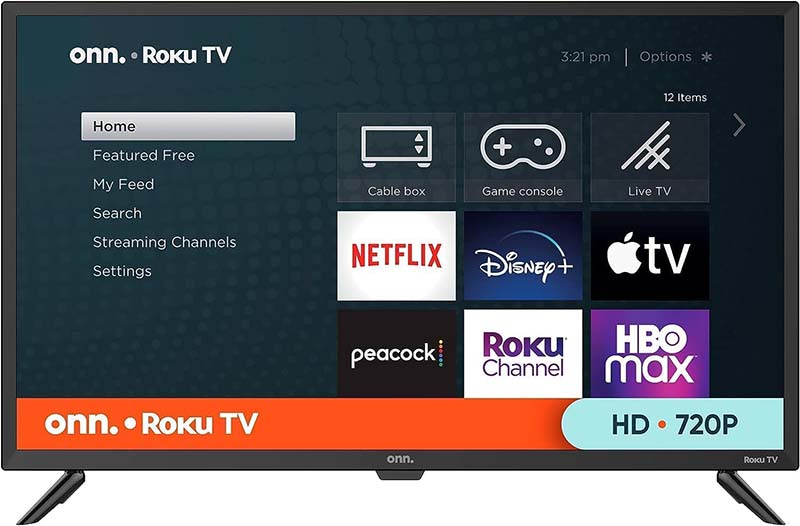
How to Watch Discovery Plus on Roku TV
Roku is a convenient option for watching Discovery Plus, especially for older televisions that do not have built-in Smart TV features.
-
Open the Roku Channel Store.
Turn on your Roku device or Roku TV and press the Home button on your Roku remote. From the left-side menu, select Streaming Store or Channel Store to browse available streaming applications. -
Search for the Discovery Plus channel.
Use the search option in the Roku Channel Store and enter Discovery+. Roku will display available results related to Discovery Plus. Select the official Discovery Plus channel page to view app details and installation options. -
Add the Discovery Plus channel to your Roku device.
Select Add Channel to install Discovery Plus on your Roku device. Roku will download the channel automatically and add it to your home screen. Once the installation is complete, you can access Discovery Plus anytime without searching again. -
Launch Discovery Plus and sign in.
Return to the Roku home screen and open the newly installed Discovery Plus channel. Select the sign-in option and enter your account information. Depending on your Roku model, you may also be able to activate the channel using an on-screen code through another device.
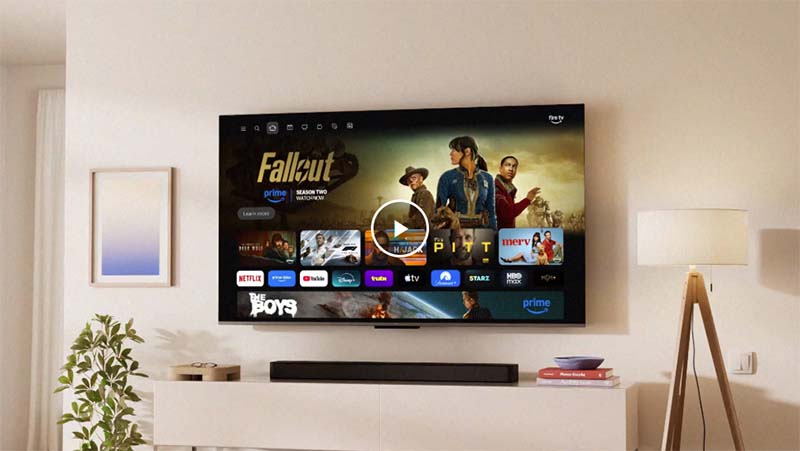
How to Watch Discovery Plus on Amazon Fire TV
Amazon Fire TV Stick allows users to add Discovery Plus support to almost any television with an HDMI port.
-
Connect your Fire TV Stick to your television.
Plug the Fire TV Stick into an available HDMI port on your TV and connect the included power adapter. Use your TV remote to switch to the correct HDMI input, then complete the initial Fire TV setup process if you are using the device for the first time. -
Open the Amazon Appstore on Fire TV.
From the Fire TV home screen, navigate to the Find section and select Appstore. The Amazon Appstore provides access to thousands of streaming applications, including Discovery Plus and other popular entertainment services. -
Search for the Discovery Plus app.
Use the search function and enter Discovery+. You can search manually with the Fire TV remote or use Alexa voice search if your Fire TV device supports voice control. Select the official Discovery Plus application from the search results. -
Install Discovery Plus on your Fire TV device.
Open the Discovery Plus app page and select Get or Download. Fire TV will automatically download and install the application. After installation, the app will appear in your Apps library and can be moved to your home screen for quicker access. -
Launch Discovery Plus and sign in to your account.
Open the Discovery Plus app from your Fire TV Apps section and select the sign-in option. Enter your account information or use the activation method if available. Once logged in, you can start streaming Discovery Plus movies, documentaries, and TV shows directly on your television.
How to Watch Discovery Plus on Apple TV
Apple TV users can install Discovery Plus from the App Store. The device also supports AirPlay, allowing users to stream content from iPhone, iPad, or Mac.
-
Open the App Store on your Apple TV.
Turn on your Apple TV and use the Siri Remote to navigate to the home screen. Select the App Store, which is the official marketplace for downloading applications designed for tvOS devices. -
Search for the Discovery Plus app.
Select the search option in the App Store and enter Discovery+. You can type the keyword using the Siri Remote or use voice search with Siri if your Apple TV model supports this feature. Choose the official Discovery Plus application from the search results. -
Install Discovery Plus on your Apple TV.
Open the Discovery Plus app page and select the Get button to begin the installation. If your Apple ID requires authentication, follow the on-screen instructions to complete the download. After installation, the Discovery Plus app will appear on your Apple TV home screen. -
Launch Discovery Plus and sign in to your account.
Open the Discovery Plus application from your Apple TV home screen and select the sign-in option. You can enter your account information directly or use an activation code method when available. After successful login, you can start watching Discovery Plus content on your TV.
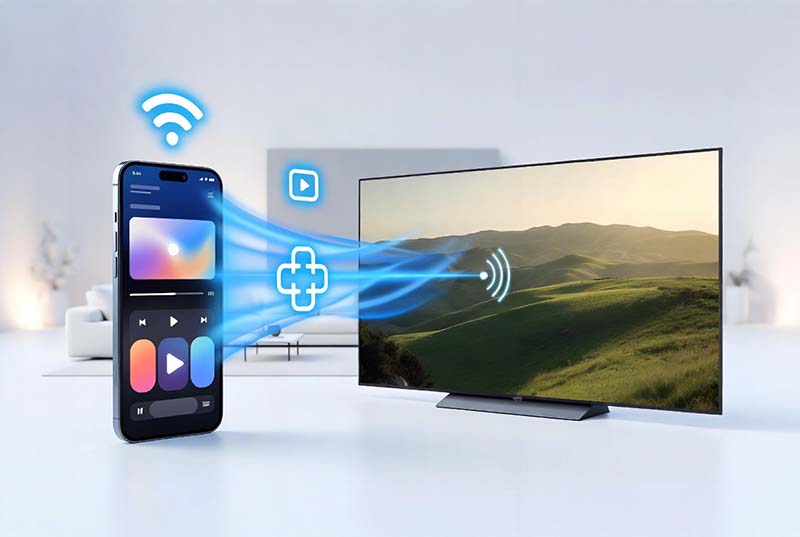
How to Cast Discovery Plus from Phone to TV
If your Smart TV does not support the Discovery Plus application, you can still watch Discovery Plus on a larger screen by casting videos from your smartphone or tablet.
Casting allows you to use your mobile device as a remote control while the video plays on your television. The most common methods include Chromecast and AirPlay.
Method 1. Cast Discovery Plus Using Chromecast
Chromecast is one of the easiest ways to stream Discovery Plus from a mobile device to a TV. Make sure your smartphone and Chromecast device are connected to the same Wi-Fi network.
-
Open the Discovery Plus app on your mobile device.
Launch the Discovery Plus application on your smartphone or tablet. Make sure you are signed in with the correct account and that your mobile device is connected to the same Wi-Fi network as your Chromecast or Chromecast-enabled TV. -
Select the movie or TV show you want to watch.
Browse the Discovery Plus library and choose the documentary, series, or TV show you want to stream. Tap the video thumbnail to open the playback screen before starting the casting process. -
Tap the Cast icon in the Discovery Plus app.
Look for the Cast icon, usually displayed in the upper-right corner of the video player. Tap the icon to view available Chromecast devices connected to your network. -
Choose your Chromecast-enabled TV.
Select your Chromecast device or compatible Smart TV from the available list. After the connection is established, the Discovery Plus video will appear on your television screen while your phone continues to work as a remote control. -
Start watching Discovery Plus on your TV.
Once casting begins, you can use your smartphone or tablet to pause, resume playback, adjust volume, or select another video. Your mobile device does not need to keep the video playing on screen, allowing you to use it normally while streaming.
Chromecast is compatible with many Smart TVs and streaming devices, making it a flexible solution for users who cannot install the Discovery Plus app directly.
Method 2. Watch Discovery Plus on TV Using AirPlay
Apple users can stream Discovery Plus from iPhone, iPad, or Mac to an Apple TV or AirPlay-compatible television.
-
Connect your Apple device and TV to the same Wi-Fi network.
Before using AirPlay, make sure your iPhone, iPad, or Mac and your Apple TV or AirPlay-compatible Smart TV are connected to the same Wi-Fi network. This allows your Apple device to detect available AirPlay receivers nearby. -
Open the Discovery Plus app on your Apple device.
Launch the Discovery Plus application on your iPhone or iPad and sign in with your account. Make sure the app is updated to the latest version to ensure better compatibility with AirPlay features. -
Select the movie or TV show you want to watch.
Browse the Discovery Plus library and open the content you want to stream. Tap the video to enter the playback screen and prepare it for AirPlay. -
Tap the AirPlay button.
During video playback, select the AirPlay icon in the player controls. If the icon is not visible, you can also open Control Center on your iPhone or iPad and select Screen Mirroring or AirPlay options. -
Select your Apple TV or AirPlay-compatible TV device.
Choose the television you want to connect to from the available AirPlay devices. After the connection is established, the Discovery Plus video will begin playing on your TV screen. You can continue using your iPhone or iPad as a remote control to pause, adjust volume, or change playback settings.
AirPlay provides a convenient way to enjoy Discovery Plus content without installing additional applications on your television.
Why Is Discovery Plus Not Working on My TV?
Although Discovery Plus works on many devices, some users may experience problems when trying to watch content on their TV. The following solutions can help fix common issues.
1. Discovery Plus App Is Not Available
If you cannot find Discovery Plus in your TV app store, your television may not support the application.
Possible reasons include:
- Your TV model is too old.
- The app is not available in your region.
- Your TV software needs an update.
A simple solution is connecting a streaming device such as Roku, Fire TV Stick, Chromecast, or Apple TV.
2. Discovery Plus Keeps Buffering
Buffering problems are usually related to internet connection quality. Try the following solutions:
- Restart your router.
- Move your router closer to your TV.
- Close unused applications.
- Update the Discovery Plus app.
- Restart your Smart TV.
For HD and 4K streaming, a stable and fast internet connection is recommended.
3. Discovery Plus App Crashes or Freezes
If Discovery Plus stops working unexpectedly, try these troubleshooting steps:
- Restart your television.
- Remove and reinstall the Discovery Plus app.
- Check for firmware updates.
- Sign out and sign back into your account.
Can You Download Discovery Plus Videos to Watch on TV?
Many users search for ways to download Discovery Plus videos because they want to watch content without an internet connection. This can be useful when traveling, using a slow network, or watching videos on a TV without a supported Discovery Plus application.
The official Discovery Plus app provides download features for selected content on supported mobile devices. However, these downloads are generally limited to the official application environment.
This means:
- Downloaded videos may only play inside the Discovery Plus app.
- Offline availability depends on content rights and subscription plans.
- Downloaded files cannot usually be transferred freely to other devices.
For users who want more flexible personal video management, saving streaming videos in widely supported formats can provide additional playback options.
Watch Discovery Plus Videos Offline with TuneBoto Video One
TuneBoto Video One helps users save supported streaming videos for more flexible offline playback. Convert streaming content into commonly supported formats and enjoy your favorite videos on more devices.
- Save videos for offline viewing.
- Export videos in MP4/MKV format.
- Keep subtitles and audio tracks.
- Watch videos without internet limitations.
How to Watch Discovery Plus Offline on TV
For users who want to enjoy Discovery Plus content offline, a common solution is preparing videos in a TV-compatible format. The general workflow looks like this:
Discovery Plus Video
↓
TuneBoto Video One
↓
MP4 / MKV Video File
↓
USB Drive / Media Player
↓
TV Playback
With this method, users can enjoy videos on different screens without depending on the Discovery Plus application or internet connection. It can be especially useful for family entertainment, travel, or offline viewing environments.

Save Streaming Videos for Offline TV Playback with TuneBoto Video One
TuneBoto Video One provides a flexible way to prepare supported streaming videos for offline viewing. Convert videos into widely compatible formats and enjoy your favorite movies and shows on more devices anytime.
 Download for Windows
 Download for Mac
Compatible with Windows and macOS
Discovery Plus on TV vs Offline Playback
| Method | Internet Required | Device Support | Offline Viewing |
|---|---|---|---|
| Discovery Plus TV App | Yes | Supported Smart TVs | Limited |
| Chromecast / AirPlay | Yes | Most Smart TVs | No |
| Roku / Fire TV | Yes | Most Televisions | No |
| Local Video Playback | No | Most TVs and Media Players | Yes |
Frequently Asked Questions About Watching Discovery Plus on TV
-
Can I watch Discovery Plus on a Smart TV?
Yes. Discovery Plus is available on many Smart TV platforms, including Samsung Smart TV, LG Smart TV, Android TV, Google TV, and other supported streaming devices. You can install the Discovery Plus app directly from your TV's app store and sign in with your account to start watching.
-
Can I watch Discovery Plus without a Smart TV?
Yes. If your television does not support the Discovery Plus application, you can use external streaming devices such as Roku, Amazon Fire TV Stick, Chromecast, or Apple TV. These devices can add Discovery Plus support to most TVs with an HDMI port.
-
Can I cast Discovery Plus from my phone to TV?
Yes. You can stream Discovery Plus from your smartphone or tablet to a compatible TV using Chromecast or AirPlay. Make sure your mobile device and TV are connected to the same Wi-Fi network before starting the casting process.
-
Can I watch Discovery Plus offline on TV?
Official Discovery Plus downloads are mainly designed for playback inside the Discovery Plus app on supported mobile devices. If you want more flexible offline playback, you can prepare videos in compatible formats and play them through supported TVs, USB drives, or media players.
-
Why is Discovery Plus not working on my TV?
Discovery Plus may stop working because of outdated software, internet connection problems, unsupported TV models, or app errors. Try updating your TV firmware, reinstalling the Discovery Plus app, or restarting your network connection to fix common issues.
-
Can I watch Discovery Plus on Roku, Fire TV, or Apple TV?
Yes. Discovery Plus is supported on popular streaming devices, including Roku, Amazon Fire TV, and Apple TV. You can download the official application from each device's app store and sign in with your Discovery Plus account.
Final Thoughts
Watching Discovery Plus on TV is easier than ever. Whether you use Samsung Smart TV, LG TV, Roku, Fire TV, Apple TV, Chromecast, or another streaming device, there are multiple ways to enjoy Discovery Plus content on a bigger screen.
For users who need more flexibility, offline playback provides another way to enjoy entertainment without being limited by internet connection or supported applications.
Choose the viewing method that works best for your device and enjoy Discovery Plus documentaries, shows, and originals anytime.

