Netflix has become one of the world's most popular streaming services, offering thousands of movies, TV shows, documentaries, and original productions. While Netflix allows subscribers to download selected titles for offline viewing, many users eventually discover that these downloads are very different from standard MP4 video files.
Official Netflix downloads can only be watched inside the Netflix app, cannot be transferred to other devices, and may become unavailable when a subscription expires or content leaves the platform.
This is why many users search for terms like "Netflix to MP4", "download Netflix videos as MP4", or "save Netflix movies permanently".
In this guide, we will explain why Netflix downloads are not MP4 files, the limitations of Netflix's official download feature, and how to use TuneBoto Video One to save Netflix videos as standard MP4 files for playback on any device.
Why Netflix Downloads Are Not MP4
Netflix downloads are protected by DRM and cannot be opened as regular MP4 videos. The downloaded files are tied to your Netflix account, the Netflix app, the authorized device, and Netflix's licensing agreements.
- App-only playback inside Netflix
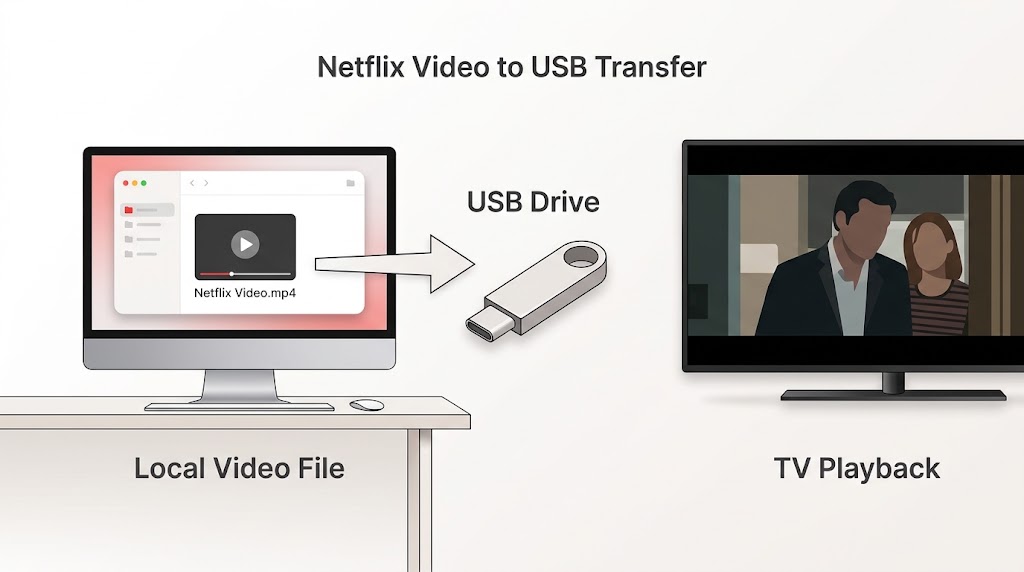
- Cannot be copied to USB or transferred between devices
- Require periodic online verification
- Become unavailable after subscription ends or content leaves Netflix
Official Netflix Download Limitations
Netflix's offline feature is convenient for short-term viewing, but it is not a true portable video solution.
- Plays only inside the Netflix app
- Cannot be copied to USB or moved to another device
- Often expires after a limited number of days
- Requires an active Netflix subscription for playback
- Only select titles are eligible for download
Benefits of Saving Netflix Videos as MP4
Standard MP4 files are far more flexible than Netflix's app-locked downloads. They can be played on almost any device, backed up permanently, and shared within your own personal media library.
| Feature | Netflix Official Download | MP4 Download |
|---|---|---|
| Playback outside Netflix | No | Yes |
| Transfer to USB or external drive | No | Yes |
| Playback after subscription ends | No | Yes |
| Compatibility with VLC/QuickTime | No | Yes |
| Permanent backup support | No | Yes |
Netflix MP4 vs Netflix Offline Download Comparison
| Feature | Netflix Official Download | MP4 Download |
|---|---|---|
| Works Without Netflix App | No | Yes |
| Playable in VLC | No | Yes |
| Transfer to USB | No | Yes |
| Backup to External Drive | No | Yes |
| Compatible with Smart TVs | Limited | Yes |
| Expiration Restrictions | Yes | No |
| Subscription Required for Playback | Usually Yes | No |
| Standard Video File | No | Yes |
For users seeking portability and long-term access, MP4 provides considerably greater flexibility than Netflix's built-in offline feature.
How to Convert Netflix Videos to MP4
Using advanced downloader technology, TuneBoto Video One is designed to save supported streaming titles as standard MP4 files. It supports Netflix and other popular services, preserves audio tracks, and avoids app-locked DRM playback.
TuneBoto Video One
-
Download Netflix videos to PC/Mac as standard MP4 or MKV files.

-
Output to universal MP4/MKV format (fully compatible with AE, PR, and CapCut).
-
Preserve surround audio and save subtitles separately.
-
Hardware acceleration enabled for faster downloads.
-
Free technical support and automatic updates.


Step-by-Step Guide: Download Netflix Videos to MP4 with TuneBoto Video One
Download and install TuneBoto Video One on your Windows or Mac computer, then launch the software.
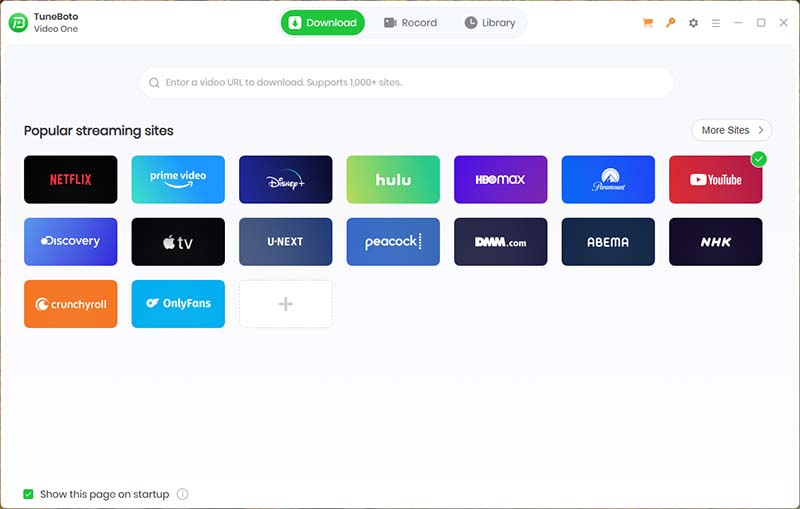
Select Netflix from the supported platform list and sign in with your Netflix account inside the built-in browser.
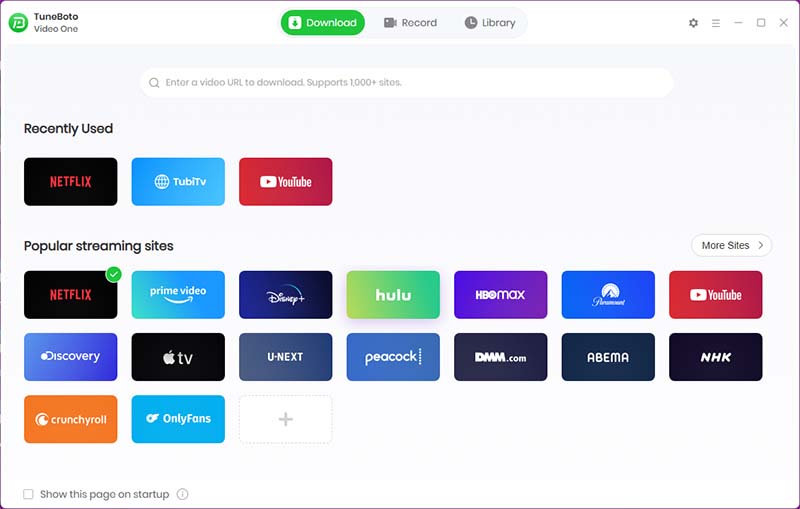
Use the integrated search field to locate the Netflix title you want to download by name or URL.
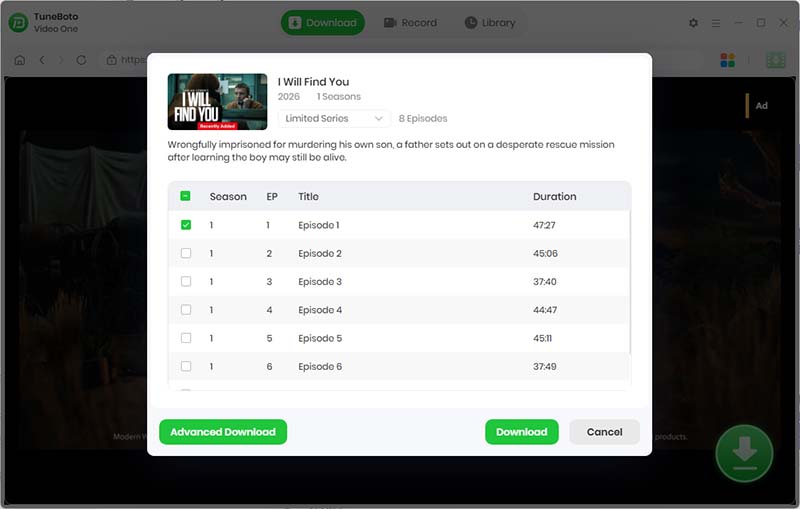
Choose MP4 output, pick the desired video quality, and select the subtitle mode. For portable videos, set subtitles to "External" or "None."
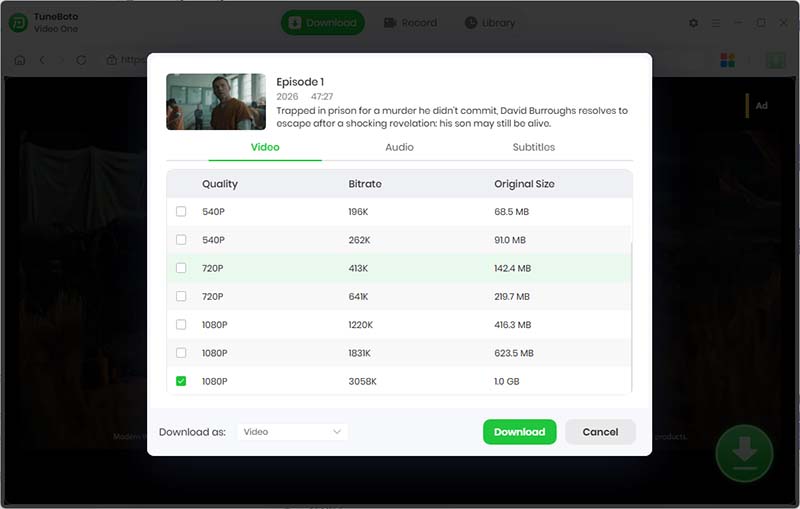
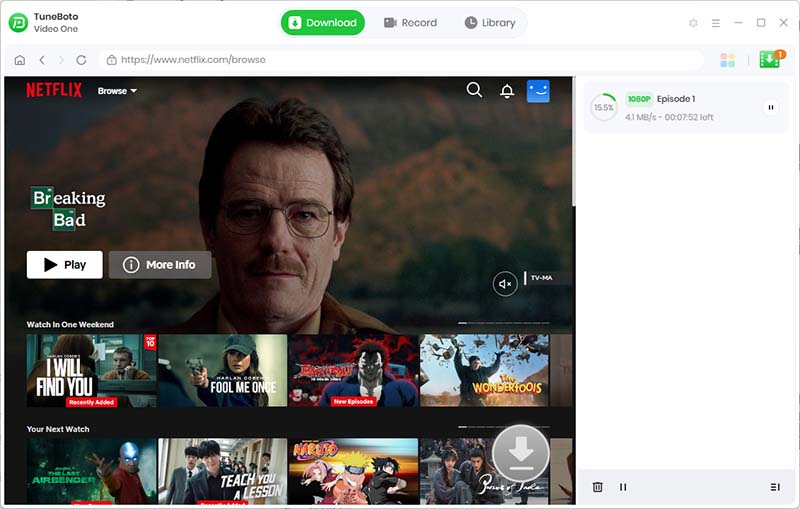
Click the Download button. TuneBoto Video One will process the title and save it as a standard MP4 file on your computer.
Frequently Asked Questions
Can Netflix videos be saved as MP4?
Netflix does not provide a direct MP4 export. Specialized downloader software like TuneBoto Video One can save supported Netflix titles as standard MP4 files for offline playback.
Is Netflix MP4 download legal?
Legal rules vary by country. Use downloaded content for personal viewing only, and avoid redistribution or commercial use to stay within copyright terms.
Can I watch MP4 files after canceling Netflix?
Standard MP4 files saved to your computer can usually be played without requiring the Netflix application.
What video quality can I download?
Available quality depends on the title and the downloader's supported resolutions. Many users seek HD and Full HD downloads for the best viewing experience.
Final Thoughts
Netflix's built-in download feature is great for temporary offline viewing, but it does not produce portable MP4 files. For users who want more flexibility, saving Netflix videos as MP4 with TuneBoto Video One offers better compatibility, backup support, and device transferability.