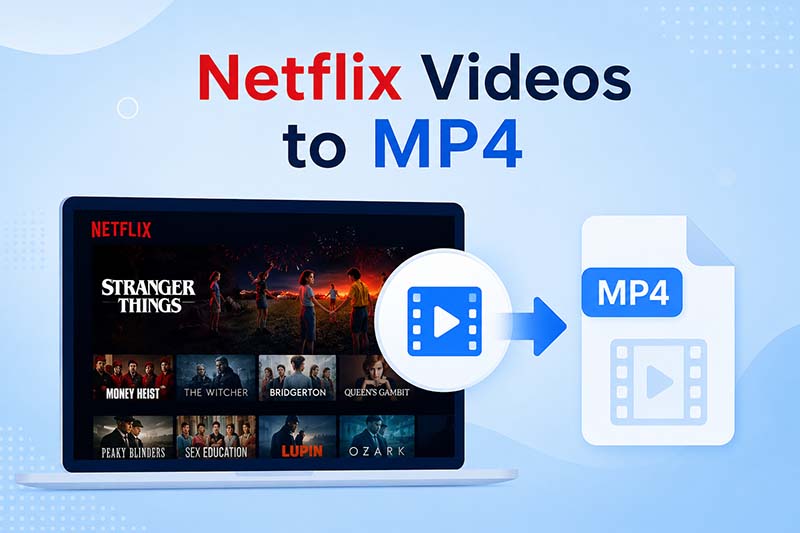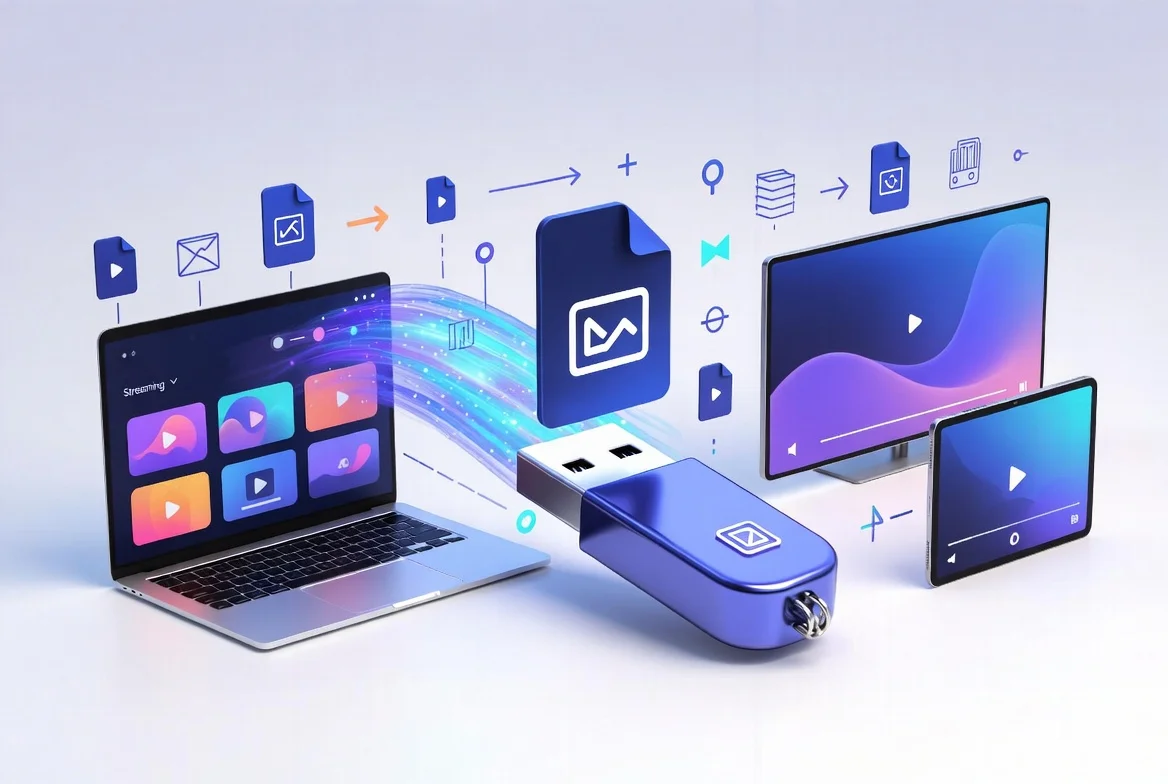
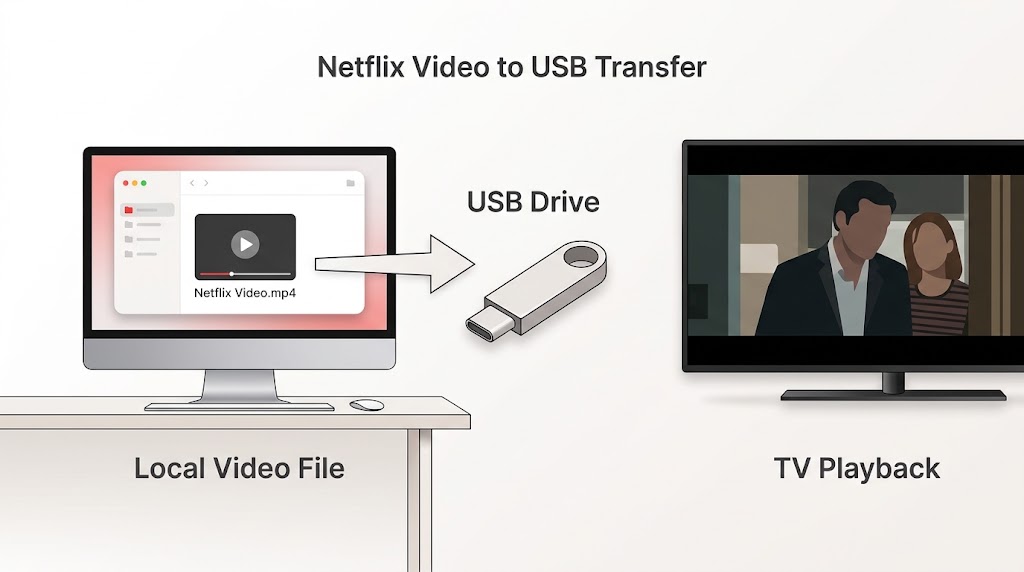
If you want to watch Netflix movies or TV shows on a TV, media player, or other device without using the Netflix app, you may wonder whether you can transfer Netflix videos to a USB drive.
The short answer is: Netflix's built-in Download feature does not provide a supported way to export downloaded titles as ordinary video files and copy them to a USB drive.
Netflix downloads are designed for offline viewing through the Netflix app on supported devices. They are not provided as normal video files that you can freely move to a USB drive.
However, if your goal is to have a local video file that can be stored on a USB drive and played through a compatible TV or media player, there is a different workflow to consider.
In this guide, we'll explain how Netflix downloads work, why they cannot simply be copied to USB, how we tested the Netflix-to-USB workflow, and how to prepare videos for USB playback.
Table of Contents
- Can You Transfer Netflix Downloads to a USB Drive?
- Why Do People Want Netflix Videos on a USB Drive?
- Netflix Download vs. USB Video File
- How to Transfer Netflix Videos to a USB Drive
- We Tested the Netflix-to-USB Workflow
- How to Play Netflix Videos from USB on a Smart TV
- A More Flexible Way to Manage Streaming Videos
- Netflix to USB: What You Actually Need
- Frequently Asked Questions
- Final Takeaway
Can You Transfer Netflix Downloads to a USB Drive?
Not directly through Netflix's built-in Download feature.
Netflix allows users to download supported movies and TV shows for offline viewing through its app. The downloaded content is managed by the Netflix application rather than being provided as a normal video file in your device's file system.
Netflix also notes that not every title is available for download, downloads can expire, and download availability can depend on the device and account plan.
| Netflix App Download | Video File on USB |
|---|---|
| Managed by the Netflix app | Managed by the operating system |
| Intended for Netflix offline playback | Intended for playback by compatible devices |
| Not provided as an ordinary video file | Can be copied between storage devices |
| Cannot be exported through Netflix's normal download feature | Can be transferred to USB storage |
| Subject to Netflix download restrictions | Managed like other local media files |
So, if you download a movie inside Netflix and then look for an ordinary MP4 or MKV file to copy to a USB drive, you won't get the type of file required for a normal USB transfer.
Two Different Workflows
The difference can be understood more clearly like this:
Netflix's official offline workflow:
Netflix → Download → Netflix App → Offline Playback
Local USB playback workflow:
Netflix → Prepare Local Video File → USB Drive → TV/Media Player → Playback
The second workflow is what users generally mean when they search for "Netflix video to USB."
Why Do People Want Netflix Videos on a USB Drive?
Netflix's offline download feature is useful when you simply want to watch content inside the Netflix app. But a USB drive offers a different type of flexibility.
Watch Videos on a Smart TV
Many smart TVs include a USB port and a built-in media player. If you have a compatible local video file, you can copy it to a USB drive and connect the drive directly to the TV.
This can be useful when the TV's Netflix app is unavailable, inconvenient, or when you want to access locally stored media from the TV's media player.
Watch Without an Internet Connection
A USB drive can store video independently of your internet connection.
For example, you may want to prepare videos before:
- A long trip
- A hotel stay
- A location with unreliable Wi-Fi
- A home theater session
- A period when internet access is unavailable
Unlike Netflix streaming, USB playback does not require an active streaming connection once the video file is already stored locally.
Store Videos on External Storage
Some users prefer keeping their media on an external SSD or USB drive instead of relying entirely on app-managed downloads.
A local video library can also be organized into folders and managed using the normal file system.
Play Videos on Different Devices
A USB drive can potentially be connected to a variety of compatible devices, including:
- Smart TVs
- Media players
- Android TV devices
- Computers
- Some game consoles
- Projectors with USB media playback
Actual playback compatibility depends on the device and the video file.
Netflix Download vs. USB Video File
The biggest misunderstanding is treating a Netflix download as if it were a normal video download.
It isn't.
Netflix's Download feature is primarily designed for offline viewing within the Netflix ecosystem, while a USB drive requires an accessible local video file.
| Feature | Netflix App Download | Local Video on USB |
|---|---|---|
| Download through Netflix | Yes | Not directly |
| Normal video file | No | Yes |
| Copy to USB | Not supported | Yes |
| Play through TV media player | No, not as a normal USB file | Yes, if supported |
| Requires Netflix app | Yes | No |
| File management | App-managed | File-system based |
| External storage workflow | Limited by app/device | Flexible |
Netflix's own support documentation confirms that downloads are tied to supported devices and the Netflix app, while download availability and limits vary depending on the title, device, and account.
This is why simply locating the Netflix download folder and copying its contents to a USB drive is not the same thing as transferring a normal video file.
How to Transfer Netflix Videos to a USB Drive with TuneBoto Video One
If you want to transfer a Netflix video to a USB drive for playback on a TV or other compatible device, you can use TuneBoto Video One to prepare the video as a local file first.
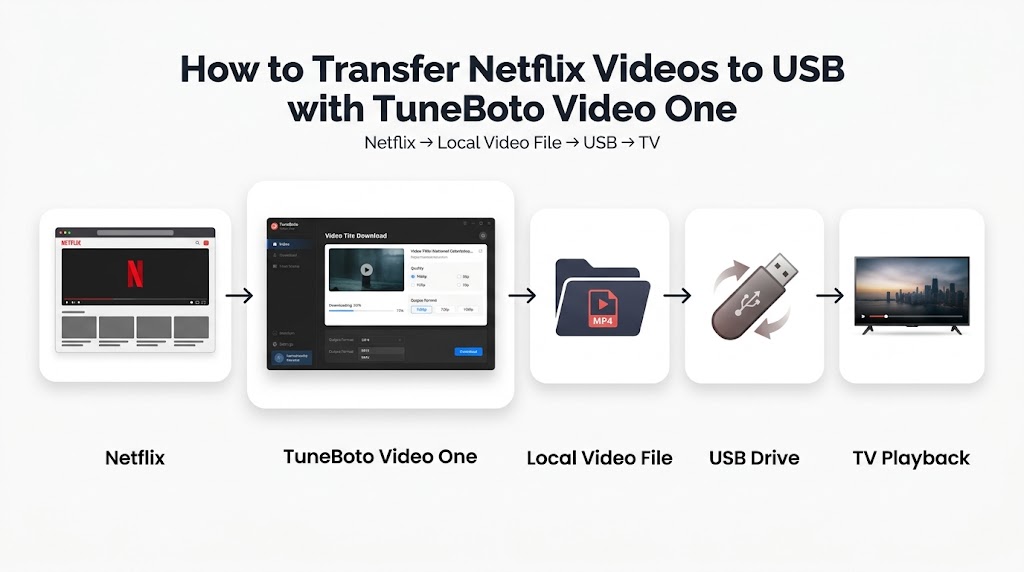
The process is simple: download the Netflix video with TuneBoto Video One, save it to your computer, copy the video to a USB drive, and then play it on a compatible TV or media player.
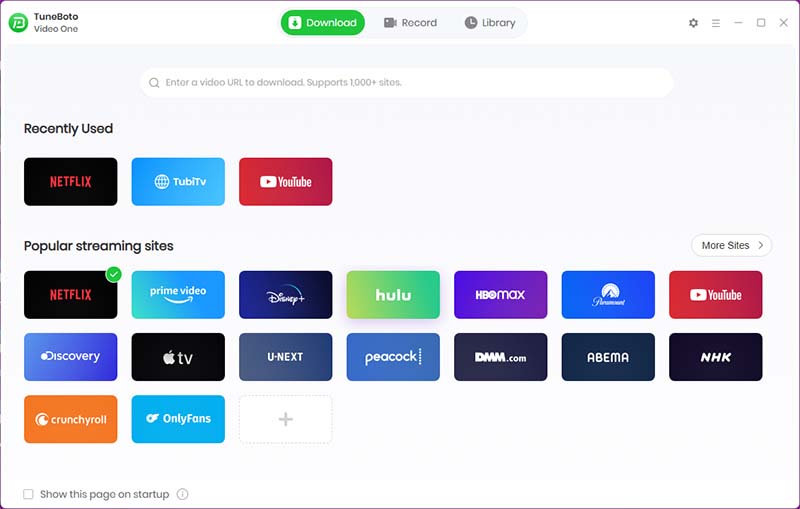
1. Open TuneBoto Video One and Select Netflix
Launch TuneBoto Video One on your Windows or Mac computer. From the supported streaming services, select Netflix and sign in to your Netflix account when required.
2. Choose the Netflix Movie or TV Show
You can then browse Netflix or paste the URL of the movie or TV show you want to download. Find the Netflix movie, TV episode, or other supported video you want to transfer to USB. Select the title and choose the available download options. Depending on the content and supported settings, you can select the desired video quality and output format.
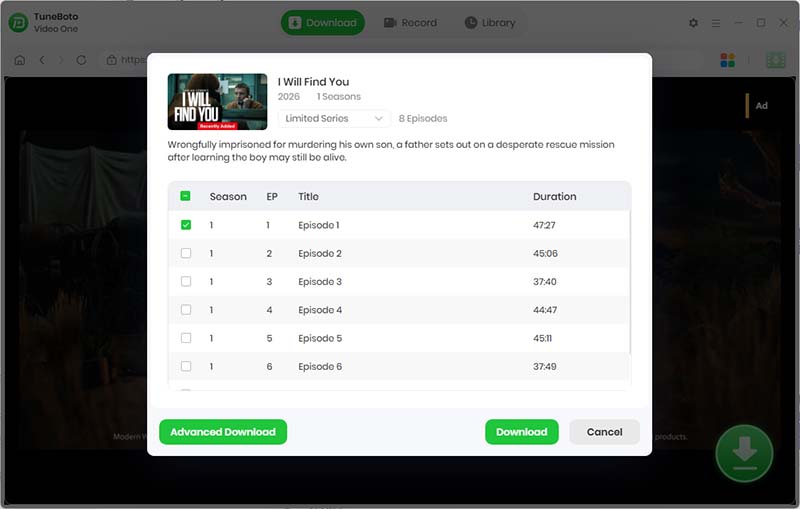
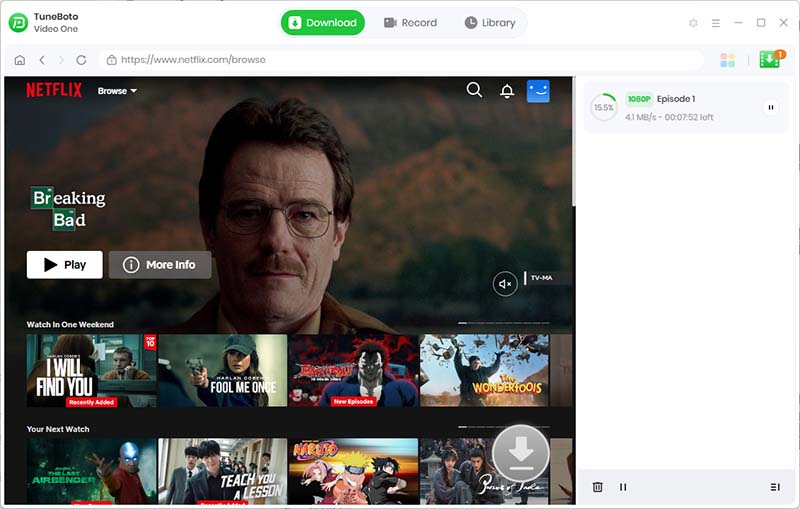
3. Download the Netflix Video with TuneBoto Video One
Click the Download button to start downloading the selected Netflix video. TuneBoto Video One saves the downloaded video as a local media file on your computer instead of keeping it inside the Netflix app's offline storage.
4. Check the Downloaded Video File
Once the download is complete, open the output folder and check the downloaded video.
Because the video is saved as a local media file, you can manage it using your computer's normal file system. You can rename the file, organize it into folders, or prepare it for transfer to external storage.
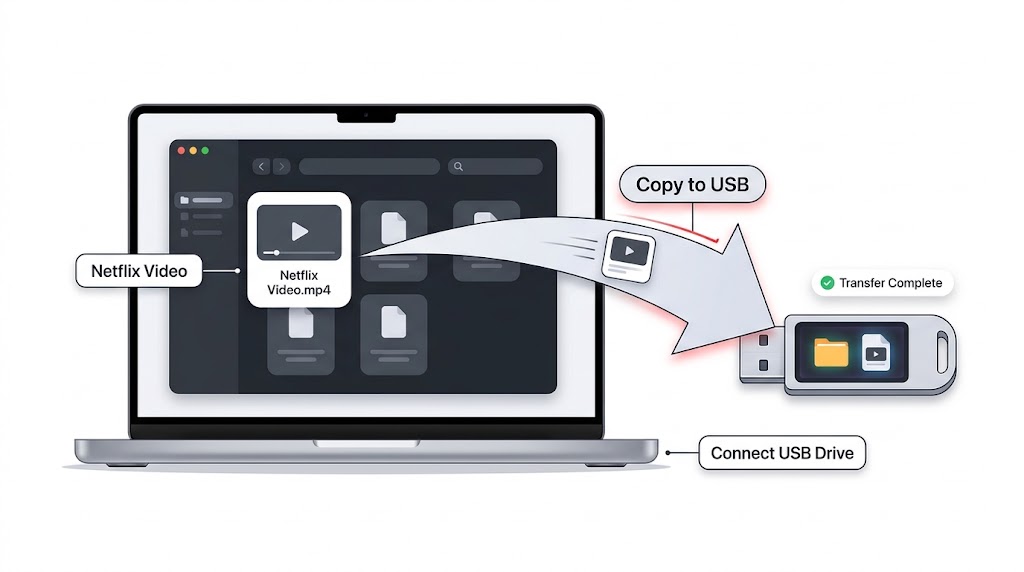
5. Connect Your USB Drive and Copy the Netflix Video to the USB Drive
Connect a USB flash drive or external USB storage device to your computer. Make sure the USB drive has enough free storage space for the Netflix video you want to transfer. Open the folder containing the downloaded video and copy the file to your USB drive. You can organize your videos into folders on the USB drive, just like other local media files.
6. Connect the USB Drive to Your TV and Play the Netflix Video from USB
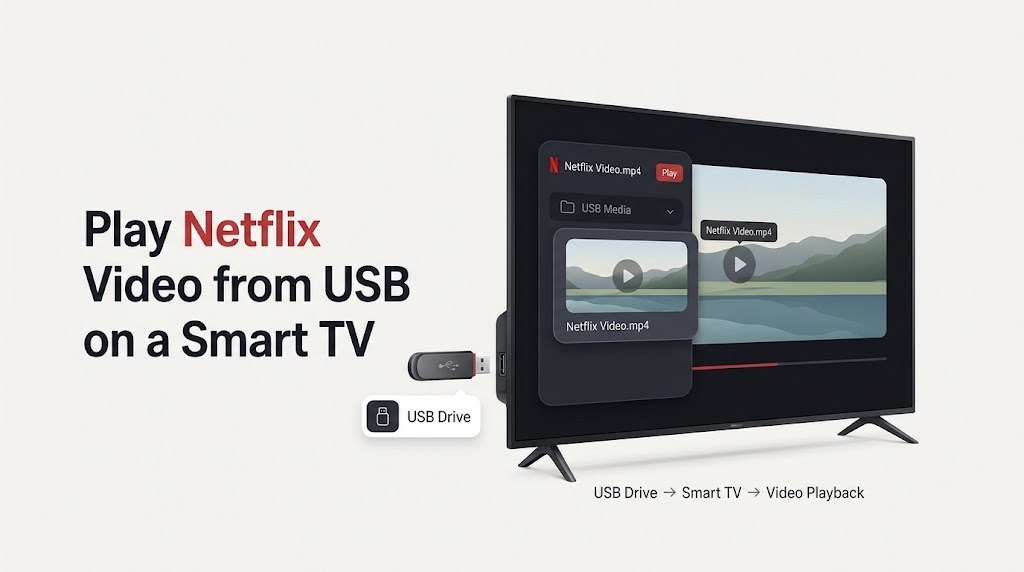
After the file has been copied, safely eject the USB drive from your computer and connect it to a compatible Smart TV or media player. Open the TV's built-in media player or USB media browser and locate the video file. Select the video and start playback. If your TV or media player supports the video's container, video codec, audio codec, and resolution, the video can be played directly from the USB drive without opening the Netflix app.
The Complete Netflix-to-USB Workflow
With TuneBoto Video One, the entire process can be summarized as:
Netflix → TuneBoto Video One → Local Video File → USB Drive → Smart TV/Media Player → Playback
This is different from Netflix's built-in Download feature. Netflix downloads are designed for offline playback within the Netflix app, while this workflow prepares a local video file that can be managed and transferred like other files on your computer.
We Tested the Netflix-to-USB Workflow
To better understand the difference between Netflix's official download feature and USB playback, we tested the complete workflow ourselves.
The test focused on a simple question:
Can a Netflix download be copied directly to a USB drive and played through a TV?
Test 1: Netflix Official Download
We first used Netflix's built-in Download feature on a supported device.
The download completed successfully and became available for offline viewing through Netflix.
However, Netflix did not provide the downloaded title as an ordinary MP4, MKV, or similar video file that could simply be dragged to a USB drive.
Test result: Netflix App Download → USB transfer is not supported as a normal file-transfer workflow.
Test 2: Prepare a Local Video File
We then tested a separate video-download workflow using TuneBoto Video One.
The purpose of this test was not to replace Netflix's own offline feature, but to determine whether a supported workflow could produce a local video file suitable for external storage.
After the download was completed, the resulting video could be accessed as a local media file.
Test 3: Transfer the Video to USB
We connected a USB drive to the computer and copied the local video file to the drive.
Unlike the Netflix app download, this file behaved like a normal computer file and could be moved to external storage.
Test 4: Play the Video from USB
Finally, we connected the USB drive to a compatible TV and opened its media player.
The locally stored video could be selected from the USB storage and played directly through the TV.
Test Results
| Test | Result |
|---|---|
| Download through Netflix App | Successful |
| Access Netflix download as normal video file | Not available |
| Copy Netflix App download directly to USB | Not supported |
| Prepare an accessible local video file | Successful in our test workflow |
| Copy local video file to USB | Successful |
| Play local video from USB | Successful on compatible TV |
| Netflix app required for USB playback | No |
The test demonstrates the key difference: Netflix's Download feature and USB video playback are two different workflows.
If your goal is specifically USB playback, the important step is obtaining a compatible local video file before transferring it to external storage.
How to Play Netflix Videos from USB on a Smart TV
Once you have a compatible local video file on your USB drive, the playback process is relatively straightforward.
Step 1: Connect the USB Drive
Insert the USB drive containing your video into an available USB port on the TV.
Step 2: Open the TV's Media Player
Depending on the TV manufacturer, you may see options such as:
- USB
- Media
- Video
- External Storage
- Media Player
Select the appropriate option.
Step 3: Open the Video Folder
Navigate through the folders on the USB drive until you find the video.
Step 4: Select the Video
Choose the video file and start playback.
Step 5: Check Playback Compatibility
If the TV does not play the video correctly, the problem may not be related to the USB transfer itself.
The TV may have limitations involving:
- Video codec
- Audio codec
- Container format
- Resolution
- HDR support
- File size
- USB file system
- Maximum supported bitrate
For this reason, a video file that plays correctly on a computer may not necessarily play correctly on every TV.
A More Flexible Way to Manage Streaming Videos
If your main goal is to move streaming videos to external storage and manage them like normal local media files, TuneBoto Video One provides a different workflow from the standard Netflix app download.
TuneBoto Video One is designed as an all-in-one video downloader supporting a wide range of streaming websites.
TuneBoto Video One
Download videos from Netflix, Prime Video, Disney+, Hulu, Max, Apple TV+ and 1,000+ supported websites.
- Save supported videos as MP4 or MKV
- Download videos for local offline playback
- Transfer downloaded files to external storage
- Available for Windows and Mac
- Support for 1,000+ streaming websites
The workflow is straightforward:
Choose a supported video → Prepare a local video file → Save it to your computer → Transfer it to USB storage → Play it on a compatible device
This can be useful for users who want more control over how their downloaded video files are stored and organized.
TuneBoto Video One can also be used with other supported streaming platforms, including services such as:
- Netflix
- Amazon Prime Video
- Disney+
- Max
- Apple TV+
- Crunchyroll
- And other supported streaming websites
Availability and functionality can change when streaming platforms update their websites or playback systems.
Netflix to USB: What You Actually Need
If you are searching for Netflix video to USB, the most important distinction is simple:
A Netflix app download is not the same thing as a transferable video file.
Netflix's official Download feature is intended for offline viewing within the Netflix app, while USB playback requires an accessible local video file.
If you want to watch a video from USB storage, the workflow needs to involve a local video file:
Netflix → Local Video File → USB Drive → Compatible TV/Media Player
Once a compatible local video file has been prepared, transferring it to USB is simply a normal file-management operation.
Frequently Asked Questions
Can I transfer Netflix downloads to a USB drive?
Not through Netflix's built-in Download feature. Netflix downloads are managed by the Netflix app and are intended for offline playback through supported devices rather than export as ordinary video files.
Why can't I copy Netflix downloads to USB?
Netflix does not provide downloaded titles as normal video files for users to freely copy and transfer. The Download feature is designed around app-managed offline playback.
How can I watch Netflix videos from a USB drive?
You need a compatible local video file first. Once the file is available, you can copy it to a USB drive, connect the drive to a compatible TV or media player, and play it through the device's media player.
Can I watch Netflix videos from USB on a Smart TV?
Yes, a Smart TV can play compatible local video files from USB storage if its built-in media player supports the video's format, codec, resolution, and other technical characteristics.
Can I transfer Netflix videos to an external hard drive?
Netflix's built-in Download feature does not provide a supported method for exporting downloaded titles as ordinary video files to an external hard drive. A separate workflow is required if you want an accessible local video file.
Does Netflix allow every movie or TV show to be downloaded?
No. Netflix states that not every title is available for download. Download availability can depend on licensing and other restrictions.
Can I play a Netflix download without the Netflix app?
Netflix's official downloads are designed for playback through the Netflix app on supported devices. They are not provided as ordinary standalone video files for general media-player playback.
Final Takeaway
Netflix does not offer a direct "Download to USB" feature.
Its Download function is designed for offline viewing within the Netflix app, while USB playback requires an accessible local video file.
If your goal is to watch streaming videos from a USB drive, the practical workflow is:
Choose content → Prepare a local video file → Transfer it to USB → Connect USB to your TV → Play the video
We also tested this workflow and confirmed the fundamental difference between Netflix's app-managed downloads and ordinary local video files.
For users who specifically need a more flexible way to prepare and manage supported streaming videos as local files, TuneBoto Video One can be used as an alternative workflow, subject to supported services and applicable terms.
Transfer Netflix Videos to USB with More Flexibility
Save supported Netflix videos as local files and transfer them to USB drives or other compatible devices.
Learn More Try It Free