How to Save a YouTube Video to Your Computer: 3 Easy Methods
Learn how to save a YouTube video to your computer using desktop software, online tools, or browser extensions. Compare quality, safety, and ease of use.
8 min read • Updated November 2026
You want to save a YouTube video to your computer so you can watch it offline, keep a reference copy, or use it in a project. The challenge is that YouTube does not provide a general-purpose download button for free users to save arbitrary videos as local files.

There are three common approaches: desktop software, online video downloaders, and browser extensions. Each has different trade-offs in video quality, convenience, and safety. This guide explains how they work and how to choose the right one.
Method 1: Desktop Software — The Premium, Feature-Rich Choice
If you regularly need to manage video files, desktop software can offer a more consistent workflow than browser-based tools. It is especially useful when you need higher resolutions, batch processing, or control over available audio and subtitle tracks.

Try TuneBoto Video One
TuneBoto Video One is desktop video software for Windows and macOS. Its advertised feature set includes support for video websites, high-resolution output options, batch processing, MP4/MKV formats, and available audio or subtitle tracks.
Actual resolution, formats, and track options depend on the source, platform support, and applicable permissions. Check the product page for current compatibility and terms.
Explore TuneBoto Video OneWhy consider desktop software?
- High video quality: Select an available resolution, including 1080p or 4K when the source and supported workflow allow it.
- Batch processing: Queue multiple authorized videos instead of handling each one individually.
- Audio and subtitles: Choose available language tracks and subtitle options where supported.
- Flexible formats: Save supported output in MP4 or MKV for playback in compatible media players.
How to Save YouTube Videos with TuneBoto Video One
For videos you own or are authorized to download, follow these steps. The screenshots below are from the TuneBoto Video One online help; available options may vary by source and version.
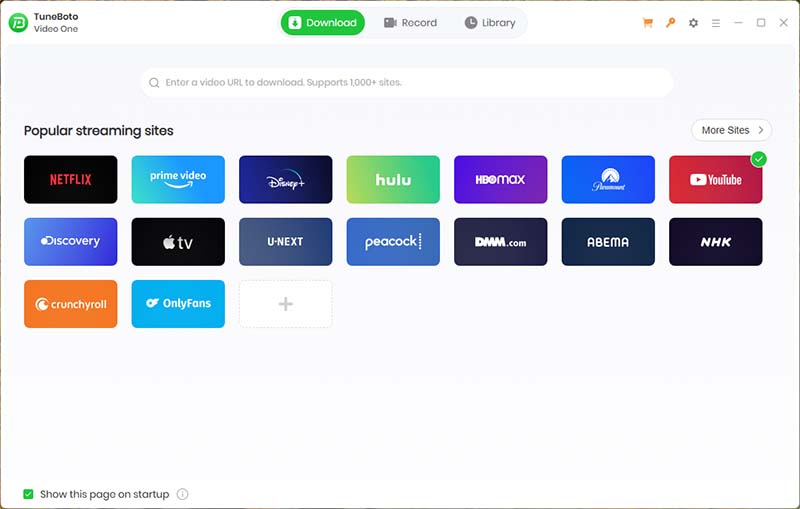
Step 1: Select YouTube
Launch TuneBoto Video One and choose YouTube from the supported services.
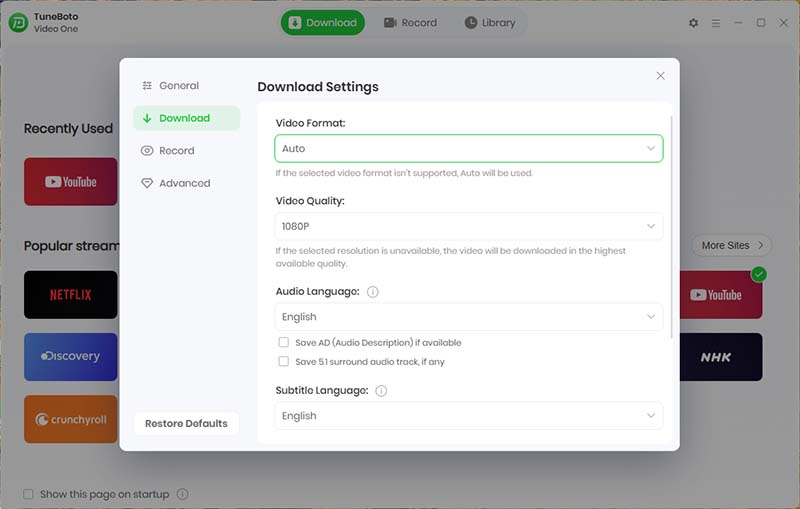
Step 2: Customize output settings
Open Settings to select an available output format (MP4 or MKV), video quality, audio and subtitle languages, and output folder.
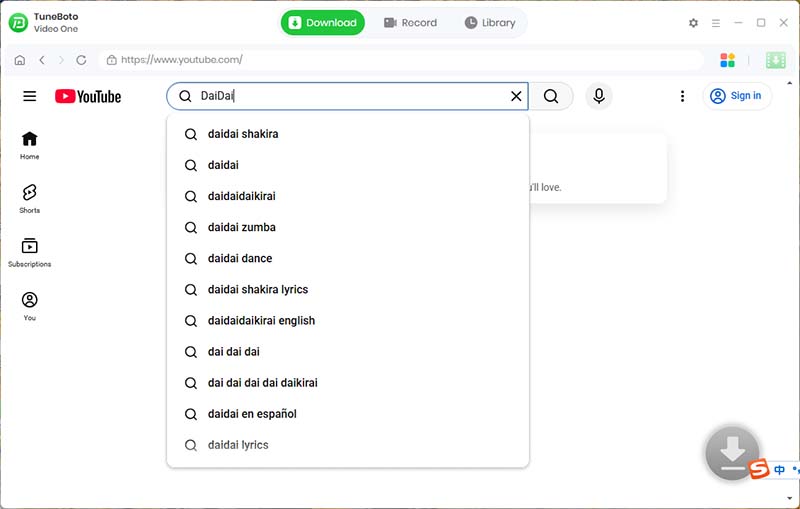
Step 3: Search for a video
Sign in if required, then search YouTube for the video you are authorized to save.
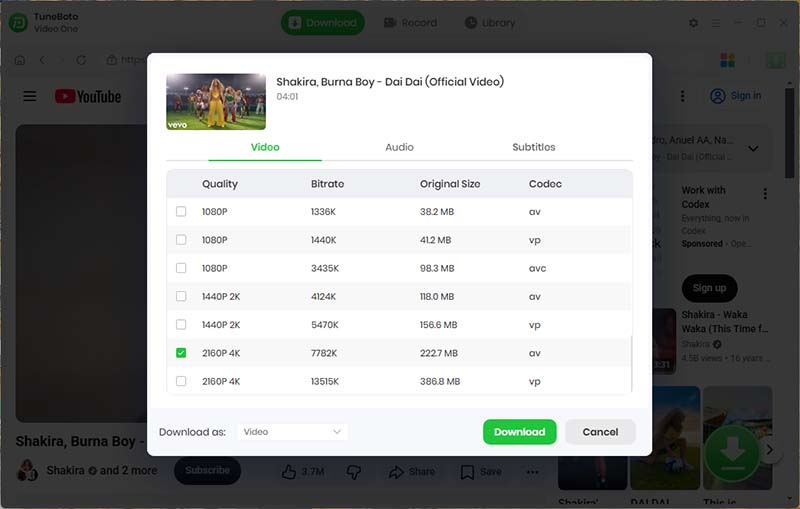
Step 4: Review download settings
After the video is parsed, review the detected details and adjust any available quality, format, audio, or subtitle options before continuing.
Step 5: Start the download
Select Download to save the video using the options you chose. Available quality and download behavior depend on the video and current platform support.
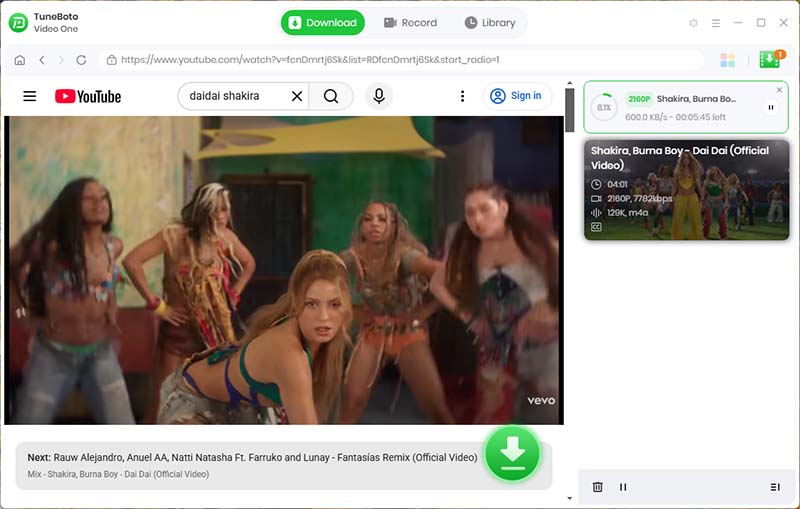
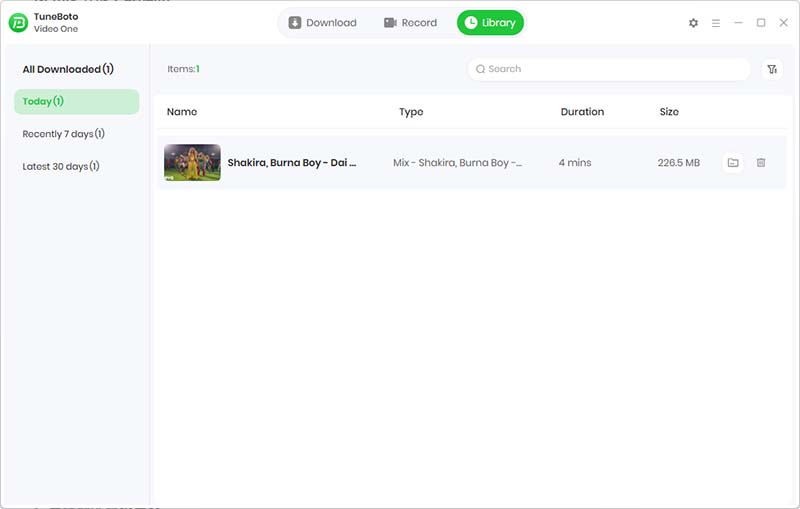
Step 6: Find your saved video
Open the Library to view completed downloads, play a file, or open its output folder.
Best for: People who regularly work with authorized video files and need more control over quality, formats, subtitles, or batch processing.
Method 2: Y2Mate — A Quick, No-Install Option
Y2Mate is an online service that advertises converting YouTube links to MP3 audio or MP4 video without requiring registration. Visit the Y2Mate website, paste a video URL, and review the available format options. Availability and output quality may vary.
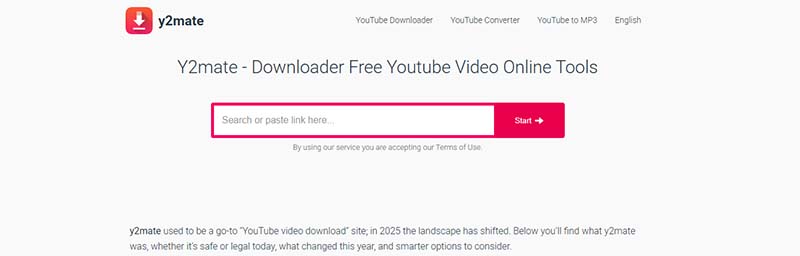
How to Save YouTube Videos with Y2Mate
- Step 1. Make sure you own the video or have permission to save it, and that your use complies with applicable terms.
- Step 2. Copy the video's URL from YouTube.
- Step 3. Open the Y2Mate website and paste the URL into its input field.
- Step 4. Review the available MP4 or MP3 options and choose one that suits your permitted use.
- Step 5. Use the site's download control, avoid advertisements or unrelated prompts, and scan downloaded files before opening them.
Pros
- Runs in a browser without desktop software installation.
- Advertises MP3 and MP4 conversion options.
- Does not require users to register, according to the service's stated offering.
Cons
- Ad-supported pages may include pop-ups or misleading download buttons.
- Available formats and quality can vary, and the service may stop working when websites change.
- Do not install unknown software, enable notifications, or provide account credentials when prompted.
- Third-party conversion services can raise privacy and security concerns.
Best for: Occasional, permitted conversions when you want a browser-based option and have checked the site's safety and available output choices.
Method 3: Addoncrop YouTube Video Downloader — A Feature-Rich Extension
Addoncrop YouTube Video Downloader is a browser extension for YouTube, commonly used with Chrome through a companion extension such as CrossPilot or CRXEmulator. Its advertised features include video quality options from 360p up to 4K, MP4 and MP3 output, video looping, screenshot capture, and cinema mode. Feature availability and supported quality can depend on your browser, helper extension, and the video.
What Addoncrop offers
- Video quality options: Advertised choices range from 360p up to 4K when supported for a video.
- Format conversion: Options include MP4 video and MP3 audio, subject to current browser and extension support.
- Extra playback tools: Includes features such as video looping, screenshot capture, and cinema mode.
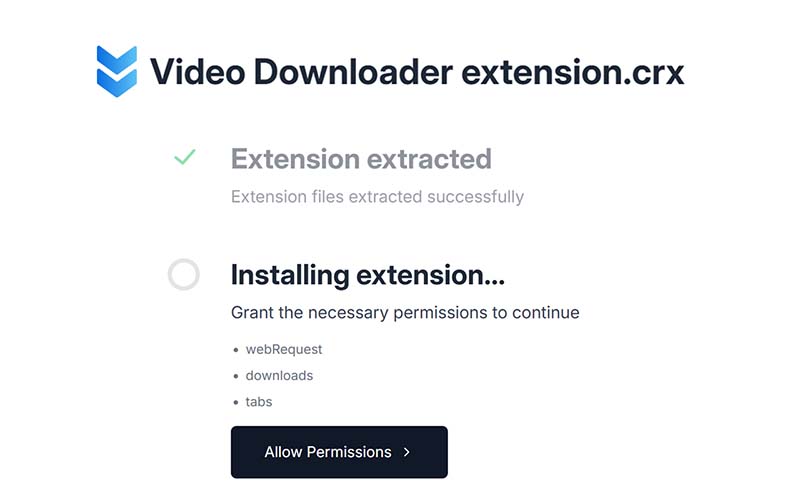
- Chrome setup: A companion helper such as CrossPilot or CRXEmulator may be needed; check the extension's current setup instructions and permissions.
How to Save YouTube Videos with Addoncrop
- Step 1. Confirm that you own the video or have permission to save it and that downloading is allowed for your use.
- Step 2. Install Addoncrop and any required Chrome helper only after verifying their publisher, source, compatibility, and permissions.
- Step 3. Open the permitted video in a compatible browser and look for the extension's download controls.
- Step 4. Select an available quality and format, such as MP4 or MP3, if offered for that video.
- Step 5. Start the download using the extension's controls and check the saved file. Options may vary by video, browser, and helper version.
Pros
- Offers playback tools such as looping, screenshots, and cinema mode.
- Advertises MP4 and MP3 output options alongside a range of video qualities.
- Works from the browser when the extension and required helper are compatible.
Cons
- Chrome setup may require a separate helper such as CrossPilot or CRXEmulator.
- Features and available quality can change with browser, helper, and video compatibility.
- Review permissions carefully, especially when installing a helper from a third party.
- Browser or website updates may disrupt functionality.
Best for: Users who want browser-based playback extras and format or quality options, and who have confirmed the extension and any Chrome helper are trustworthy and appropriate for their use.
Comparison: Which Method Is Best for Saving YouTube Videos?
The right option depends on how often you need to save videos and what you expect from the resulting files.
| Criteria | TuneBoto Video One | Online Downloaders | Browser Extensions |
|---|---|---|---|
| Video Quality | High-resolution options, depending on source | Often limited | Varies by extension |
| Subtitle Support | Available track options, where supported | Usually limited | Varies |
| Safety & Stability | Dedicated desktop software; obtain it from the official site | Depends heavily on the website | Depends on publisher and permissions |
| Ease of Use | Simple workflow after setup | Quick, but ads can interfere | Convenient once installed |
| Best For | Regular users handling authorized video files | Occasional, simple tasks | Users who prefer browser integration |
Which option should you choose?
- TuneBoto Video One: Consider it if you regularly handle authorized video downloads and want high-resolution options, batch processing, or multilingual audio and subtitles. It may suit content creators, educators, and movie fans organizing local files.
- Online tools: Consider them for occasional, simple tasks only when the service is trustworthy and the download is permitted.
- Browser extensions: Consider them when convenience matters and you can verify the publisher, permissions, and legitimate use case.
For frequent video work, dedicated desktop software generally offers more control than relying on multiple online services or browser add-ons.
Frequently Asked Questions
Related YouTube Guides
Final Thoughts
There are several ways to save a YouTube video to your computer, but no single method is ideal for everyone. Online tools are convenient for occasional tasks, while browser extensions offer quick access when they support a legitimate download.
For more frequent work with authorized video files, desktop software such as TuneBoto Video One provides a more feature-rich workflow, including available high-resolution options, batch processing, and subtitle and audio controls. Before downloading, always check the video's permissions and the applicable platform terms. YouTube also provides a direct download option through YouTube Studio for videos you uploaded.
