

Looking for a CNV MP3 alternative because a conversion failed, a link is unsupported, or you need a feature such as batch processing? This guide compares browser-based and desktop options, explains the trade-offs to check before switching, and covers basic troubleshooting. Availability, limits, and advertising can change, so confirm current details on each provider’s official site; no third-party tool can be guaranteed safe based on a feature list alone.
What is CnvMP3 and Is It Safe to Use?
CnvMP3 is a handy free online converter for users who want a quick way to turn a supported video link into an audio file without installing a desktop app. However, convenience comes with trade-offs: MP3 downloads may be limited to 192kbps, users can encounter redirect ads, and the service does not support playlist or batch downloads. Redirects and third-party download pages can also raise privacy and security concerns, so avoid entering account details, granting unexpected permissions, or downloading unfamiliar software. Site behavior can change, and a 192kbps output setting does not guarantee that the source audio has that bitrate.
Because of these security risks and limitations, many users are looking for safer, ad-free CnvMP3 alternatives. If you need playlist controls or prefer desktop software, Macsome Music One is one option to compare; check its current supported sources, pricing, and terms before choosing.
Quick answer: For a one-off conversion, compare browser tools such as YTMP3 or EzMP3. If you need playlist or batch controls, compare desktop options such as ClipGrab or 4K YouTube to MP3 and check current platform support first. If you are researching free YouTube-to-MP3 sites generally, see our free YouTube to MP3 sites comparison.

CNV MP3: Advantages and Limitations

Advantages
- Simple access: It is a free browser-based tool and does not require registration, making quick single-file conversions straightforward.
- Output options: It offers MP3 downloads, with output quality that may be limited to 192kbps; a selected bitrate does not establish that the source audio has that quality.
- Source coverage and limits: Supported services and maximum video length can change, so verify them before relying on a conversion.
Limitations
- No Batch Downloading: Cannot process playlists or multiple files at once.
- Conversion Speed: Varies based on network and server load.
- Intermittent availability: A converter can fail because of temporary service, network, or source changes.
- Limited Features: Lacks audio trimming or advanced editing tools.
Common reasons to look for an alternative include conversion errors, unsupported links, changing service limits, and uncertainty about ads or privacy. Check recent, independent feedback rather than relying on an old review count or a blanket “safe” claim.
CNV MP3 Not Working? Checks Before Switching
If CNV MP3 fails, check the following before trying another service:
- Confirm that you are using the official site and that the source link is valid and supported.
- Check your connection, then retry with a current browser and a shorter, authorized source file if applicable.
- Review the service’s own help or status information. Avoid lookalike domains, mirror sites, and unexpected extensions or installers.
- If the problem continues, choose an alternative based on the source, format, and device you need rather than assuming a different site will support every link.
How to Use CNV MP3
CNV MP3 is straightforward to use for converting YouTube videos to MP3 or MP4. Follow these steps:

- 1. Find the Video: Open YouTube and copy the URL of the video you want to convert.
- 2. Visit CNV MP3: Go to the CNV MP3 website (ensure you’re on the official site to avoid scams).
- 3. Paste the URL: Paste the video URL into the provided input field on the homepage.
- 4. Choose Format and Quality: Select MP3 (or MP4) and your preferred quality (up to 320kbps for MP3).
- 5. Convert and Download: Click the convert button, wait for processing (typically 1-2 minutes for a 5-minute video), and download the file.
Tips:
- Use a stable internet connection to avoid interruptions.
- Check whether the source is supported and whether the service currently has a length or format limit.
- If the service is unavailable, check its official status or help information rather than using a mirror or bypassing local restrictions.
CNV MP3 Alternatives to Compare in 2026
The options below are examples users may compare, not a live safety certification or guarantee that every service currently works. Weigh the source coverage, format and quality choices, playlist support, ads, privacy requirements, and whether you prefer a website or installed software. Confirm current features on the provider’s official site before using it.
Desktop software option: Macsome Music One
Macsome Music One is a desktop application rather than a browser-based converter. Consider it only if you prefer installed software and need its currently supported sources or file-management features. Check the provider’s current pricing, supported platforms, and terms; it is not a like-for-like free website replacement.

Macsome Music One
-
Download songs, albums, playlists from Spotify, Apple Music, YouTube, etc

-
Convert any streaming songs to MP3, AAC, WAV, FLAC, AIFF, ALAC
-
Keep ID3 tags and lyrics; 100% original audio quality up to Ultra HD & HD
-
10X download speed & batch download playlists/albums
-
Archive downloaded songs by album/artist/playlist
-
Desktop workflow without browser pop-up ads; download only from the official source and review installer permissions.

Step-by-step Guide to Download MP3 from YouTube
Step 1. Download, install, and launch Macsome Music One on your computer. Click on the "YouTube" module, and the YouTube player will pop up. You don't need to log in to your account.
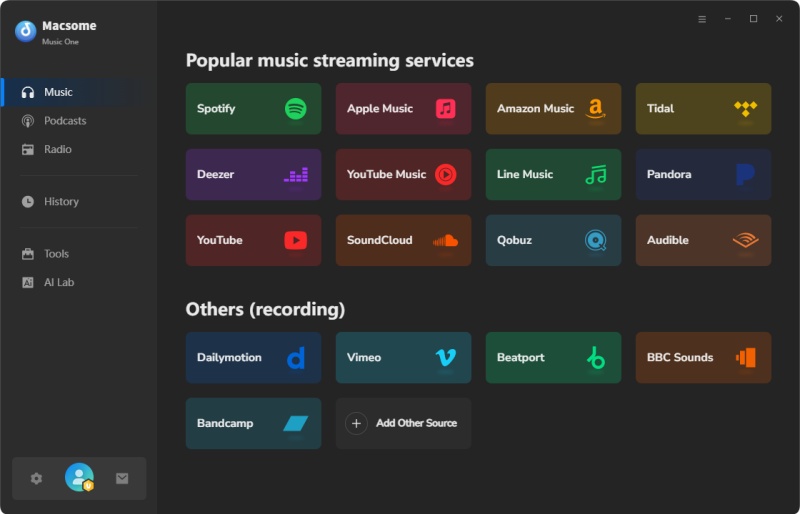
Step 2. Choose MP3 as the output format, output path, output quality, output file name, or other parameters, click on the "More settings" option.
Step 3. Go to YouTube, browse the videos, then press the "Click to add" button to load them to Macsome. Click the "Add" to import to the main window.
Step 4. Click on the "Convert" button to start downloading the YouTube to MP3 process. After the download, go to the "History" section on the left, and click the "Folder" icon to find the downloaded tracks.
1. YTMP3
Overview: A popular free YouTube-to-MP3 tool supporting MP3 and MP4, with a maximum sound quality of 192kbps.
- Pros: Free browser access and a simple flow for single-video conversions; no desktop installation is needed.
- Cons: No playlist or batch support. As with online converters generally, pop-up or redirect ads, usage limits, and privacy risks may vary by site, region, or visit; check the current page before using it.
- Use Case: Ideal for quick conversions of short videos.

How to Use YTMP3
- Step1. Copy the YouTube video URL from your browser.
- Step2. Visit the YTMP3 website.
- Step3. Paste the URL into the input box on the homepage.
- Step4. Select MP3 as the format (MP4 also available).
- Step5. Click “Convert” and wait for processing (usually under 1 minute).
Tip: Ensure a stable internet connection for faster conversions.
2. EzMP3
Overview: A browser converter with basic audio trimming; check the current site for available output options and limits.
- Pros: Includes audio trimming; check the current site for available output options.
- Cons: No playlist or batch support, and conversion speed varies. Pop-up or redirect ads, usage limits, and privacy risks can affect online converters; current behavior may vary by site and region.
- Use Case: Perfect for users needing high-quality audio with light editing.

How to Use EzMP3
- 1. Copy the YouTube video URL.
- 2. Go to the EzMP3 website.
- 3. Paste the URL into the input field.
- 4. Choose MP3 and select up to 320kbps quality.
- 5. Optionally, trim the audio by setting start/end times.
- 6. Click “Convert” and download the file after processing (1-2 minutes).
Tip: Use the trimming feature for shorter clips to save time.
Amazon Music Converter
-
Download Amazon Music songs, albums, playlists & podcasts to local computer
-
Convert Amazon Music songs to MP3, AAC, WAV, FLAC, AIFF, ALAC
-
Keep ID3 tags and lyrics; 100% original audio quality up to Ultra HD & HD
-
10X download speed & batch download playlists/albums
-
Archive downloaded songs by album/artist/playlist
-
Handy tools: Format Converter, Tag Edit, Burn CD and Export to iTunes/Music
3. SaveMP3.net
Overview: Supports multiple video sources (YouTube, TikTok, etc.), user-friendly, no software required.
- Pros: Browser-based access and multiple source options are listed; confirm current support on the provider’s site.
- Cons: Ads and output limits may apply, and playlist or batch support may be unavailable. Online converters can also involve redirects or privacy trade-offs; check current behavior and terms.
- Use Case: Great for downloading from various platforms.

How to Use SaveMP3.net
- Step1. Copy the URL of a YouTube or other supported video.
- Step2. Visit SaveMP3.net.
- Step3. Paste the URL into the search bar.
- Step4. Select MP3 and choose available quality (up to 256kbps).
- Step5. Click “Convert” and wait for the file to process (under 1 minute).
- Step6. Download the MP3, avoiding any pop-up ads.
Tip: Use an ad-blocker to improve the experience.
4. ClipGrab
Overview: A free desktop tool for YouTube and other platforms, featuring clipboard monitoring.
- Pros: Supports batch downloading, feature-rich.
- Cons: Requires installation, occasional compatibility issues.
- Use Case: Suited for frequent downloaders preferring desktop tools.

How to Use ClipGrab
- 1. Download and install ClipGrab from its official site.
- 2. Open ClipGrab and copy a YouTube video URL.
- 3. Paste the URL into the “Downloads” tab or let clipboard monitoring detect it.
- 4. Select MP3 and choose quality (up to 320kbps).
- 5. Click “Grab this clip!” to start conversion and save the file.
Tip: Enable clipboard monitoring for automatic URL detection.
5. GreenConvert
Overview: An online tool listed as supporting MP3 and MP4 downloads; verify current formats and source coverage on its official site.
- Pros: Secure, easy to use.
- Cons: Basic features, no advanced options.
- Use Case: A browser-based option to compare if you prefer not to install software.

How to Use GreenConvert
- Step 1. Copy the YouTube video URL.
- Step 2. Visit the GreenConvert website.
- Step 3. Paste the URL into the input field.
- Step 4. Select MP3 and choose quality (up to 256kbps).
- Step 5. Click “Convert” and wait for processing (1-2 minutes) to download the MP3 file.
Tip: Check the exact domain and privacy terms. HTTPS alone does not establish that a site or download is safe.
6. 4K YouTube to MP3
Overview: A desktop application for converting YouTube videos to MP3, supporting high-quality audio.
- Pros: High-quality audio (up to 320kbps), supports playlists, fast local processing.
- Cons: Requires installation, free version has limitations.
- Use Case: Ideal for users needing playlist support and offline processing.

How to Use 4K YouTube to MP3
- 1. Download and install 4K YouTube to MP3 from its official site.
- 2. Open the app and copy a YouTube video or playlist URL.
- 3. Paste the URL using the “Paste Link” button.
- 4. Select MP3 and quality (up to 320kbps).
- 5. Click “Download” to process and save the file locally.
Tip: Use playlist URLs for batch downloading in the free version.
7. OnlineVideoConverter
Overview: A versatile online tool supporting multiple formats and platforms, including YouTube to MP3.
- Pros: Wide format support, multi-platform, user-friendly.
- Cons: Ads in free version, slower for longer videos.
- Use Case: Suited for users needing flexibility in formats and sources.

How to Use OnlineVideoConverter
- Step1. Copy the URL of a YouTube or supported video.
- Step2. Visit OnlineVideoConverter’s website.
- Step3. Paste the URL into the input box.
- Step4. Choose MP3 and select quality (up to 256kbps).
- Step5. Click “Start” to convert (1-2 minutes) and download the file.
Tip: Close pop-up ads carefully to avoid redirects.
8. SnapDownloader
Overview: A premium desktop tool with a free version, supporting YouTube and other platforms with high-quality downloads.
- Pros: High-quality audio, batch downloading, multi-platform.
- Cons: Free version limited, requires installation.
- Use Case: Great for advanced users wanting robust features.

How to Use SnapDownloader
- 1. Download and install SnapDownloader from its official site.
- 2. Open the app and copy a YouTube video or playlist URL.
- 3. Paste the URL into the input field.
- 4. Select MP3 and quality (up to 320kbps).
- 5. Click “Download” to process and save the file.
Tip: Use the free version for single videos; upgrade for batch features.
9. Y2Mate
Overview: A widely used online YouTube-to-MP3 converter, supporting multiple quality options.
- Pros: Fast, no signup required, supports multiple formats.
- Cons: Ads may interrupt the conversion flow; review each page before interacting with it.
- Use Case: Suitable for quick conversions if users can navigate ads.
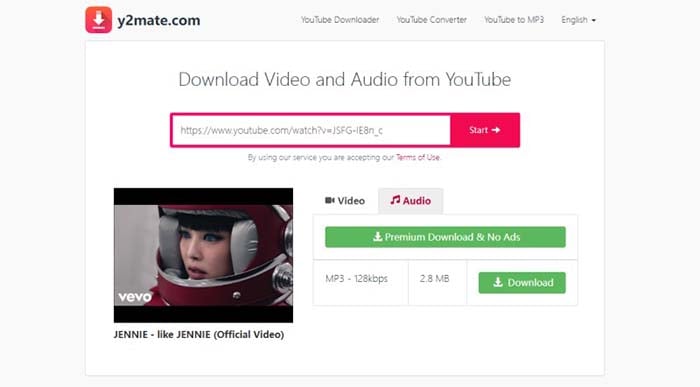
How to Use Y2Mate
- Step1. Copy the YouTube video URL.
- Step2. Visit the Y2Mate website.
- Step3. Paste the URL into the search bar.
- Step4. Select MP3 and choose quality (up to 320kbps).
- Step5. Click “Convert” and wait for processing (under 1 minute).
Tip: Use antivirus software due to ad-related risks.
10. FLVTO
Overview: A a simple and efficient way to convert and download YouTube videos in MP3 format.
- Pros: Easy to use, fast download, and online download.
- Cons: Frequent "Conversion Error" problems.
- Use Case: Ideal for users needing simple conversions and don't want to download or install any software.
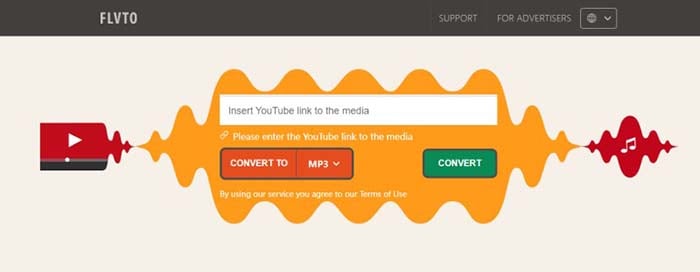
How to Use FLVTO
- 1. Copy the YouTube video URL.
- 2. open flvto.co and paste YouTube video link in this website search box.
- 3. Simply select MP3.
- 4. Then click the "CONVERT" button.
- 5. click the "DOWNLOAD MP3" button.
Tip: Trim longer videos to reduce conversion time.
Comparison Table
| Tool | Sound Quality | Conversion Speed | Ad-Free | Batch Downloading | Multi-Platform | Additional Features | Ease of Use |
|---|---|---|---|---|---|---|---|
| CNV MP3 | Up to 192kbps | Medium | Not guaranteed | No | Yes | None | High |
| YTMP3 | Up to 192kbps | Fast | Varies | No | Yes (YouTube-focused) | None | High |
| EzMP3 | Up to 320kbps | Medium | Varies | No | Yes | Audio trimming | High |
| SaveMP3.net | Up to 256kbps | Fast | Varies | No | Yes | None | Medium |
| ClipGrab | Up to 320kbps | Fast | Yes | Yes | Yes | Clipboard monitoring | Medium |
| GreenConvert | Up to 256kbps | Medium | Yes | No | Yes (YouTube-focused) | None | High |
| 4K YouTube to MP3 | Up to 320kbps | Fast | Yes | Yes | Yes | Playlist support | Medium |
| OnlineVideoConverter | Up to 256kbps | Medium | No | No | Yes | Wide format support | Medium |
| SnapDownloader | Up to 320kbps | Fast | Yes | Yes | Yes | Advanced format options | Medium |
| Y2Mate | Up to 320kbps | Fast | No | No | Yes | None | Medium |
| Flvto | Up to 320kbps | Medium | Yes | No | Yes (YouTube-focused) | None | High |
Notes: Features and availability can change. This comparison is not an independent security audit or speed benchmark; verify current limits, ads, and supported sources on each provider’s official site.
How to Choose the Right CNV MP3 Alternative
Select a tool to download YouTube to MP3 based on your needs:
- High Sound Quality: EzMP3 or ClipGrab (320kbps).
- Batch Downloading: ClipGrab for playlists or multiple files.
- Multi-Platform Support: SaveMP3.net or CNV MP3.
- Browser-based use: Compare options such as GreenConvert or YTMP3, and review the current page for ads, permissions, and privacy terms.
Considerations:
- Ensure compliance with copyright laws.
- Use only content you own, that is public domain or openly licensed, or that you have permission to download; applicable laws and platform terms still apply.
- Check recent independent feedback and the provider’s current privacy and security information.
Safety, Privacy, and Permission Checks for CNV MP3 Alternatives
- Check the destination: Use the provider’s official domain, watch for misleading buttons or permission prompts, and avoid installing unknown extensions or applications.
- Respect rights and terms: Download only content you are authorized to save. Personal use alone does not automatically grant permission.
- Recheck current details: A clean interface or an “ad-free” claim is not proof of privacy, security, or legality.
Conclusion
The best CNV MP3 alternative depends on why you are switching: another browser tool may suit a one-off conversion, while desktop software may offer controls that a web converter does not. Recheck availability, supported sources, and privacy practices before choosing. For a broader list that is not specific to CNV MP3, see our free YouTube to MP3 sites guide.
FAQs about CnvMP3
Why is CnvMP3 not working?
YouTube may change its systems or access rules, which can temporarily disrupt third-party online converters until their providers adapt. Unsupported links, service limits, network issues, or temporary outages can also cause failures. Check CnvMP3’s current help information and retry later.
Is CnvMP3 a virus?
CnvMP3 is a website, not a virus by definition, but that does not guarantee every ad, redirect, or download shown while visiting it is safe. Avoid suspicious pop-ups, unexpected permissions, and unfamiliar installers, and do not enter sensitive information on untrusted pages.
What is the best alternative to CnvMP3?
For a free, one-off browser conversion, YTMP3 is one option to compare. If you prefer a desktop workflow, consider TuneBoto software only when its current supported sources and output formats meet your needs. Check current features, pricing, and terms; no option is best for every user.

Gabrielle Miller | Senior Editor

