How to Use TuneBoto Video One for Windows
TuneBoto Video One is an all-in-one streaming video downloader and recorder that enables you to save videos from Netflix, Amazon Prime Video, Disney+, Hulu, Max, Paramount+, Peacock, Crunchyroll, Apple TV+, YouTube and many other websites. With TuneBoto Video One, you can download videos in MP4 or MKV format, preserve multilingual subtitles and audio tracks, and record videos from virtually any website at up to 8X speed.
 Download PDF User Manual of TuneBoto Video One
How to Register TuneBoto Video One
The trial version allows downloading only the first few minutes of each video. To unlock the full version, purchase a license and register the program using the email address and license code you receive.
Step 1: Launch TuneBoto Video One and click the Key icon.
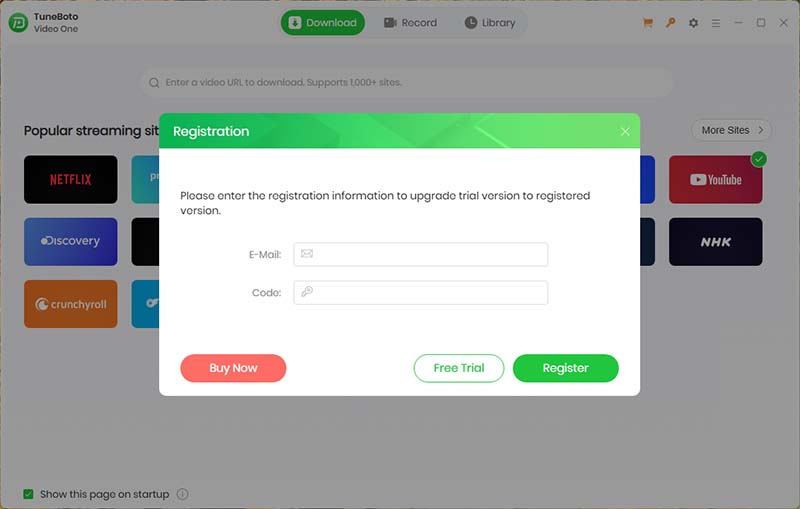
Step 2: Enter your registration email and license code.
How to Download Videos with TuneBoto Video One
TuneBoto Video One supports downloading videos from major streaming services and saving them permanently as MP4 or MKV files.
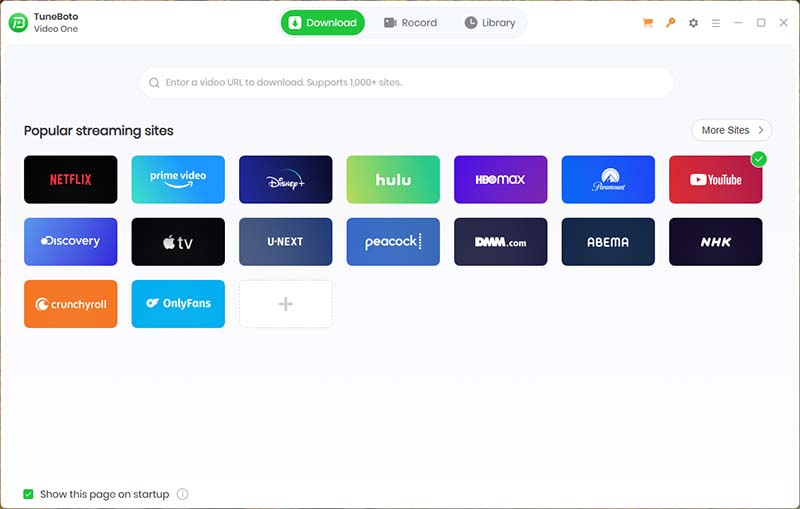
Step 1. Select a Streaming Service
Launch TuneBoto Video One. Choose Netflix, Amazon Prime Video, YouTube, Disney+, Hulu, Max, Paramount+, Peacock, Apple TV+, Crunchyroll or another supported service.
Step 2. Customize Output Settings
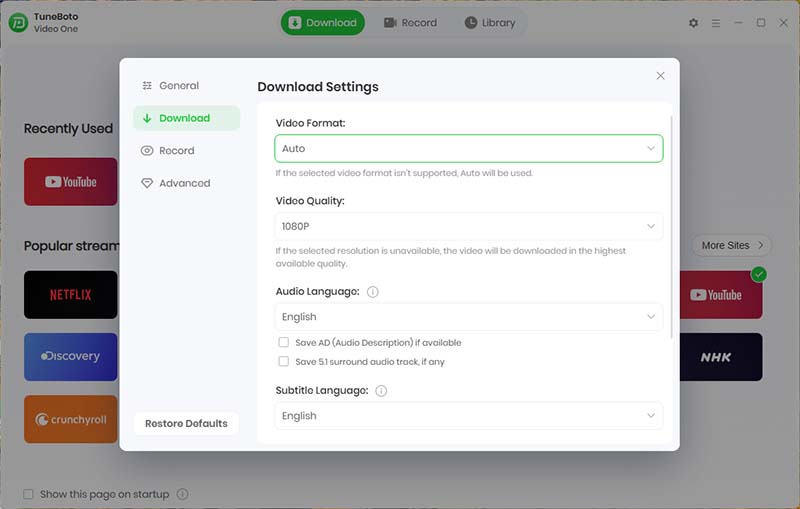
Click the Settings icon. You can configure:
- Output Format (MP4 / MKV)
- Video Quality
- Audio Language
- Subtitle Language
- Output Folder
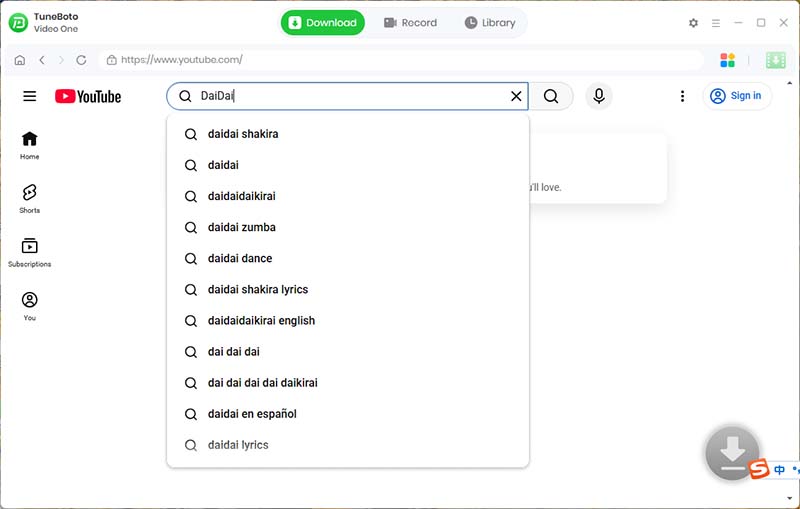
Step 3. Search for Videos
Sign in to your streaming account and search for movies, TV shows, documentaries, anime, sports events or original content.
Step 4. Configure Advanced Download Settings
Select preferred video resolution, audio tracks and subtitles before downloading.
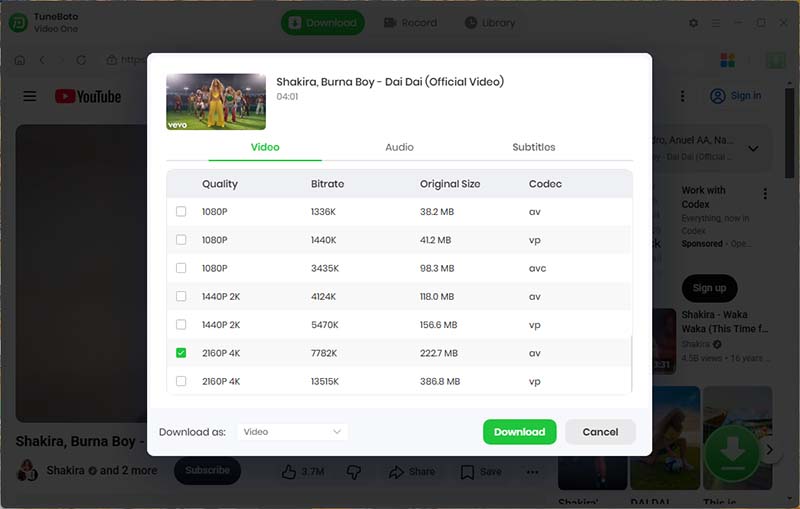
Step 5. Download Videos
Click the Download button. TuneBoto Video One will download videos at high speed while preserving video quality.
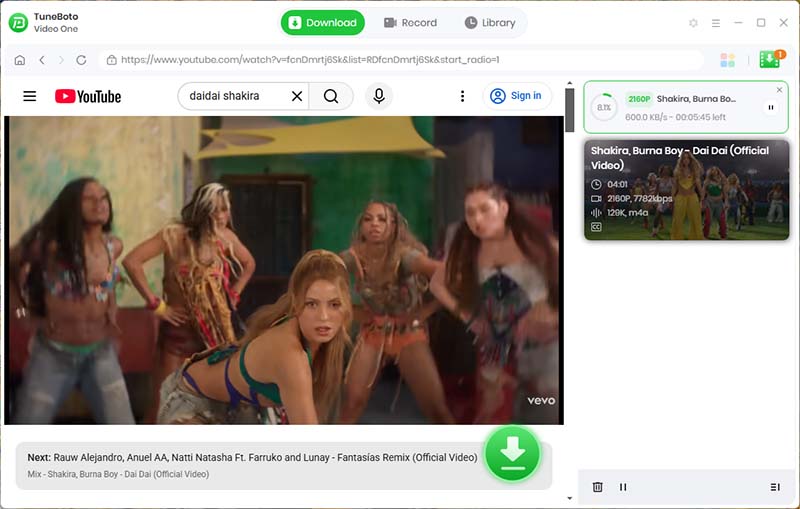
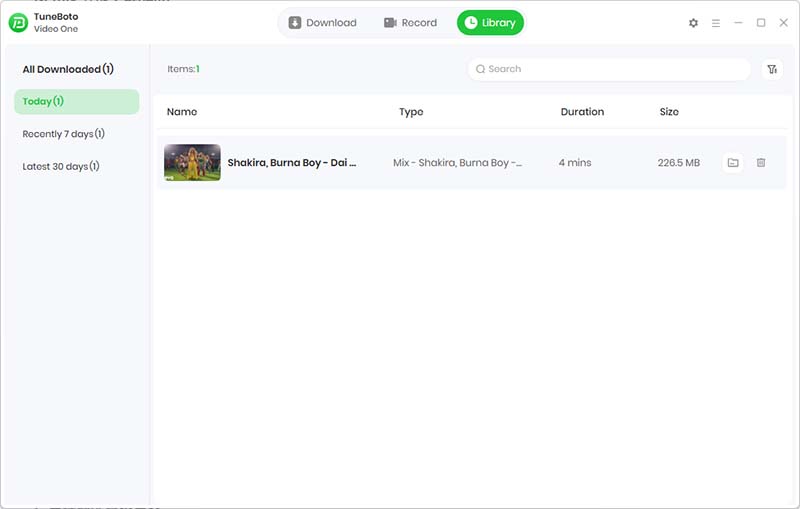
Step 6. Access Downloaded Videos
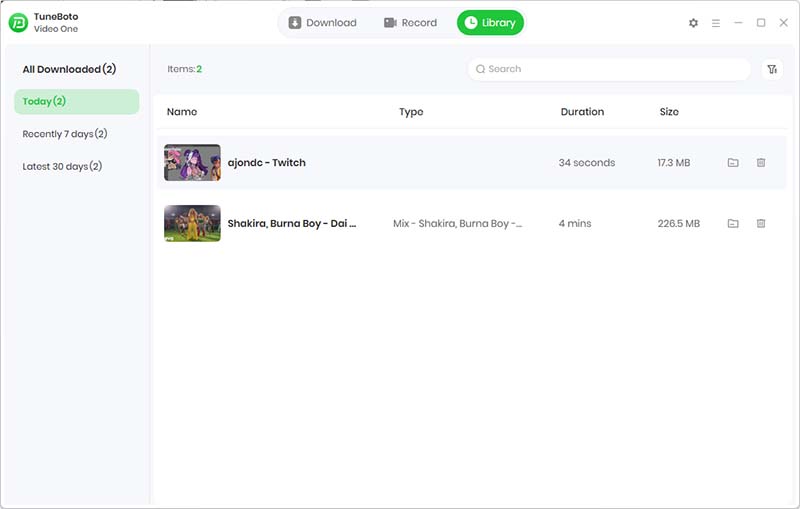
Open the Library section to view downloaded videos. You can play them directly or open the output folder.
How to Record Videos from Any Website
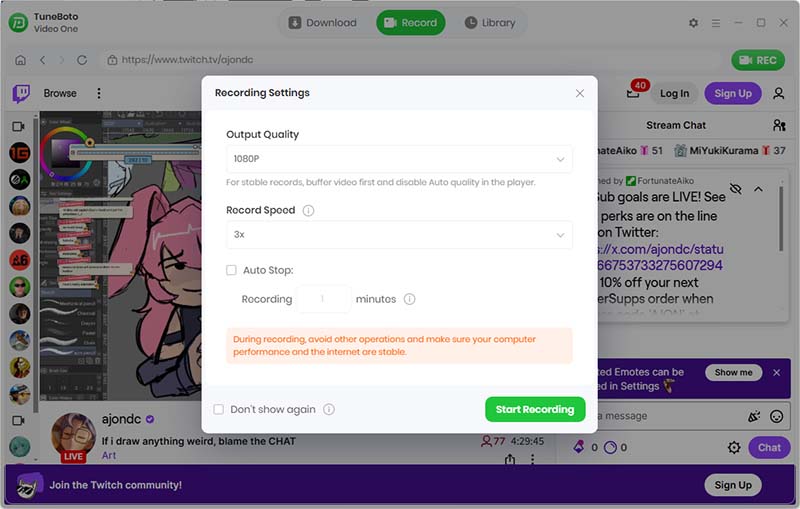
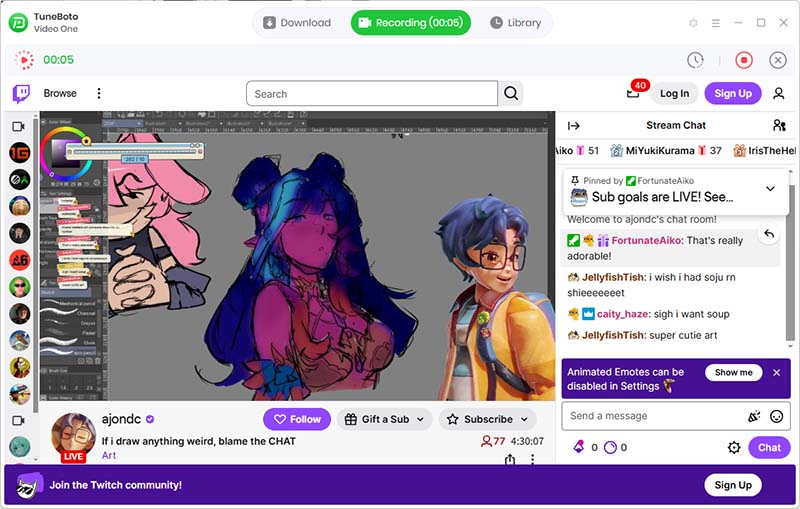
The built-in recorder allows recording videos from virtually any website at up to 8X speed.
Step 1. Open Recorder Mode, and input the video url you want to record.
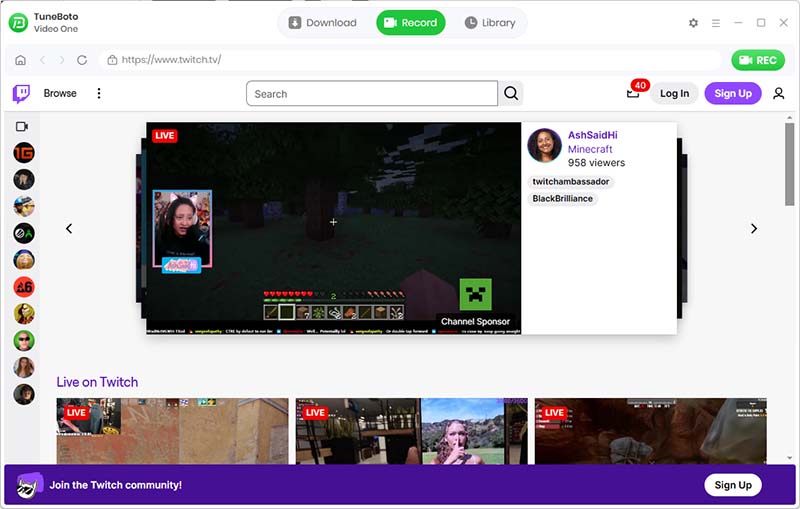
Step 2. Configure Recording
Step 3. Start Recording
Step 4. View Recordings
Frequently Asked Questions
Can TuneBoto Video One save videos as MP4?
Yes. Both MP4 and MKV formats are supported.
Can I download subtitles?
Yes. Embedded, external and hardcoded subtitle modes are available depending on the service.
Can I keep videos forever?
Yes. Downloaded videos remain playable even after they are removed from the platform or your subscription expires.
Can I record live streams?
Yes. TuneBoto Video One supports recording live streams, webinars, sports events and other online content.
