Sometimes you want to get through an episode faster. Other times, you may want to slow down a scene to catch a line of dialogue or understand what's happening. If you've searched for a way to change the playback speed of Disney+ videos, you've probably noticed that the option isn't as easy to find as it is in some other video players.
The short answer: Disney+'s documented player controls do not list a general playback-speed setting. Browser extensions may offer workarounds, while VLC and other desktop players can adjust the speed of compatible local video files. Each option has limitations, especially when DRM-protected streaming content is involved.
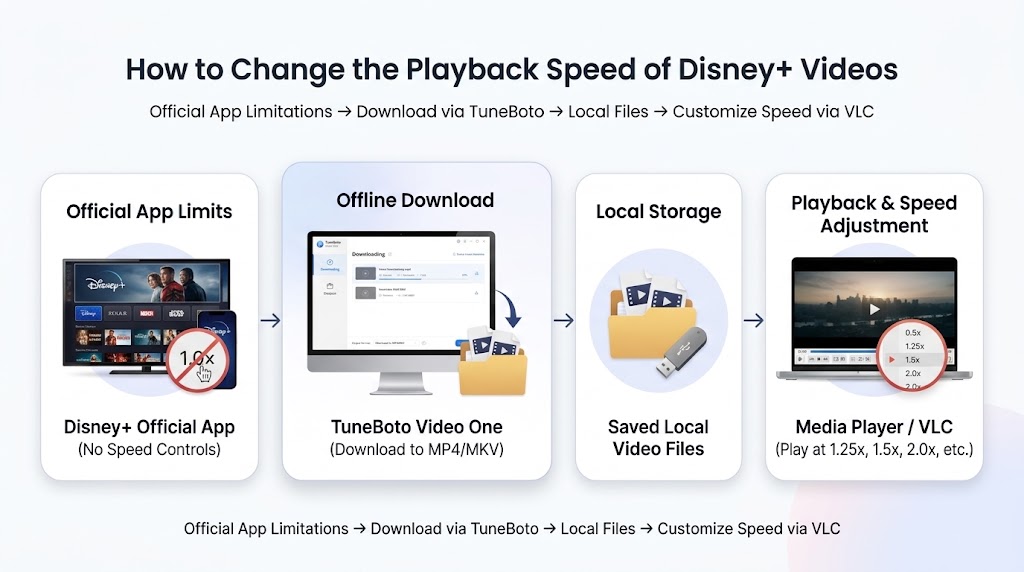
Does Disney+ Have Playback-Speed Controls?
Disney+ provides standard playback features such as play and pause, seeking, subtitles, audio options, and fullscreen viewing. However, its documented player controls do not currently list a general option for changing playback speed.
This means you may not find a speed selector such as 0.75x, 1.25x, or 2x in the Disney+ player. The available controls can vary by device, app version, and content type, so check the controls on your own device for the latest options.
Why isn't the option available?
- Platform design: Disney+ does not document a general playback-speed setting for its standard player controls.
- Device differences: Features may differ between web browsers, mobile apps, smart TVs, and streaming devices.
- Protected streaming: DRM and browser security restrictions can limit how third-party tools interact with streaming video.
If you're watching directly in the Disney+ app, first check the current playback menu and app updates. If a speed option isn't available, the alternatives below may help in specific situations.
Adjust the Speed of Compatible Local Video Files
Desktop media players such as VLC can change playback speed for compatible video files stored on your computer. This can be useful when you have a video file that you're permitted to play locally and want to watch it at 1.25x, 1.5x, or another speed.
This is not the same as adding speed controls to Disney+'s streaming player. A media player generally cannot be expected to open or play a protected stream directly from Disney+.
Where TuneBoto Video One fits in
TuneBoto Video One is a desktop video tool that supports a range of streaming services and video websites. Its published features include MP4 and MKV output options and audio and subtitle settings for supported workflows.
If you're evaluating a tool for managing video files, review its current compatibility, the applicable streaming-service terms, and your rights to save the content before proceeding. A downloader does not add a playback-speed control to the Disney+ app, and downloaded files are not guaranteed to be compatible with every media player.
Important: Streaming subscriptions and platform terms may restrict copying, downloading, or circumventing content protection. Only use features and workflows that are permitted by applicable terms and law.
Explore TuneBoto Video OneThe Best Way to Convert Disney Plus to MP4 via TuneBoto Video One
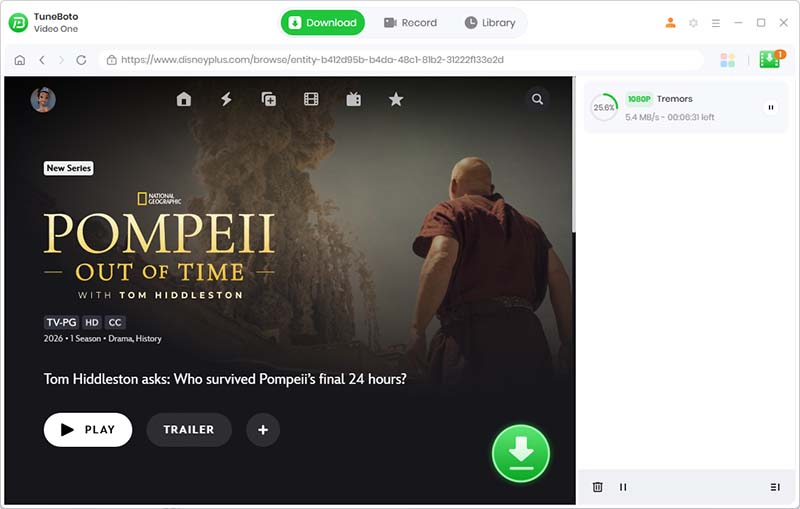
The cleanest and fastest method to save Disney+ videos as local MP4 files is using TuneBoto Video One. It is an all-in-one media downloading tool that strips DRM encryption from Disney+ videos while preserving full 1080p HD quality, 5.1 surround sound, and multi-language subtitles.
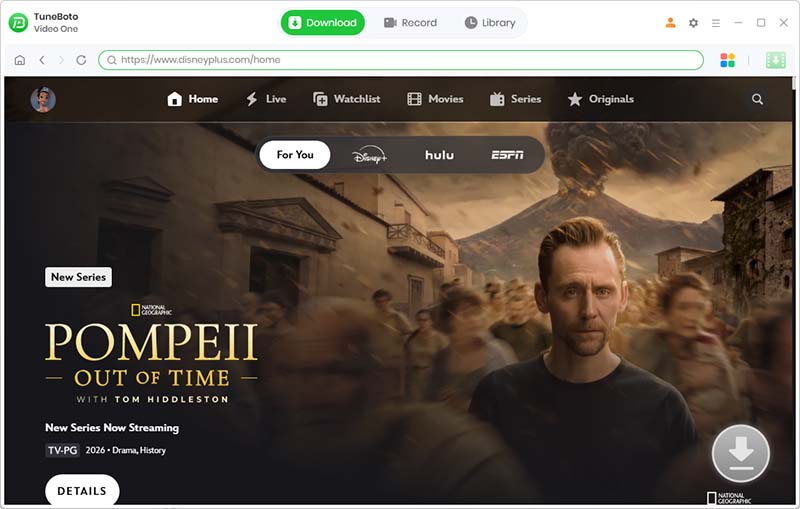
Launch TuneBoto Video One & Select Disney+
Download and install TuneBoto Video One on your Windows PC or Mac. Launch the program and choose Disney+ from the supported site list.
Choose MP4 as the Output Format
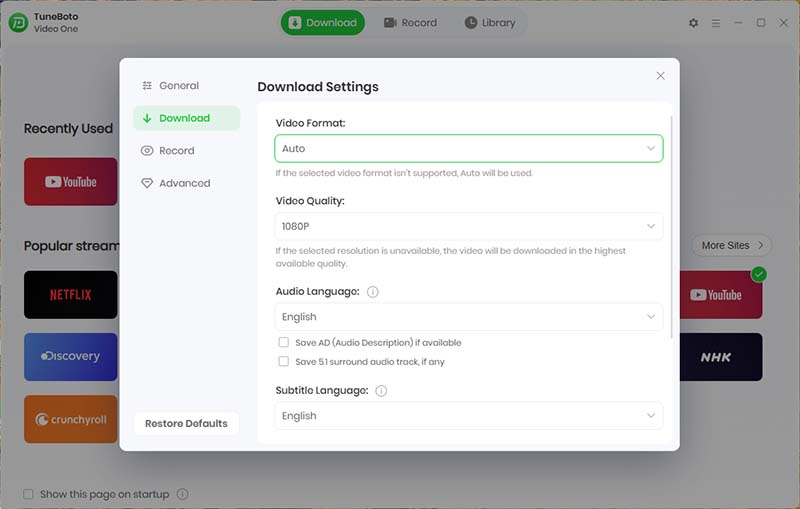
Click the Settings (Gear Icon) in the top-right corner. In the settings window:
- Set Output Format to MP4.
- Set Video Quality to High (up to 1080p).
- Select your preferred Audio Language (e.g., English, Spanish, French) and enable 5.1 Surround Sound.
- Choose your Subtitle Type (Internal, External, or Hardcode).
Search for Disney+ Movies or TV Shows
Type the title of the movie or show directly into TuneBoto's search bar, or copy and paste the video URL from your web browser. TuneBoto Video One will analyze the link and display all matching content instantly.
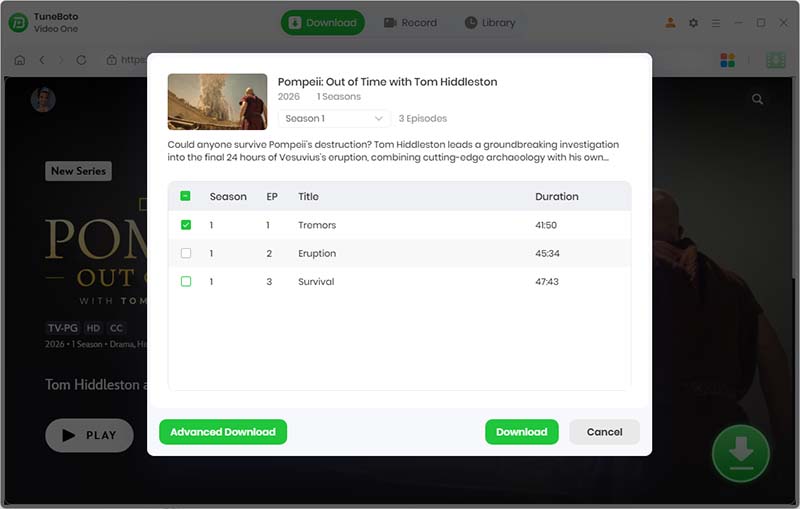
Start Converting Disney+ Videos to MP4
Click the blue Download icon next to the title. If downloading a TV series, select the specific episodes you want to export. TuneBoto will convert the selected videos to DRM-free .mp4 files at high speed and save them to your local folder.
How to Change Playback Speed in VLC
VLC Media Player lets you adjust the speed of many compatible local video files. If you already have a video file that you are allowed to play, follow these steps.
-
Open VLC Media Player.
Install and launch VLC from its official website if it isn't already on your computer.
-
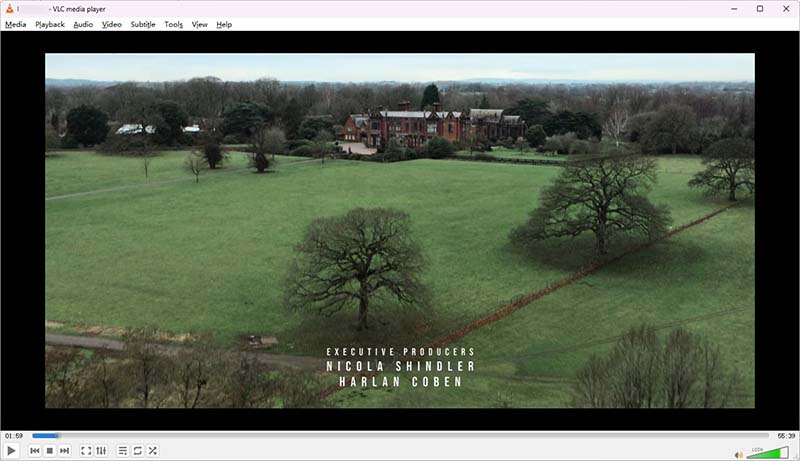
Open a compatible video file.
Choose Media > Open File on Windows or use the corresponding file-opening option on your system.
-
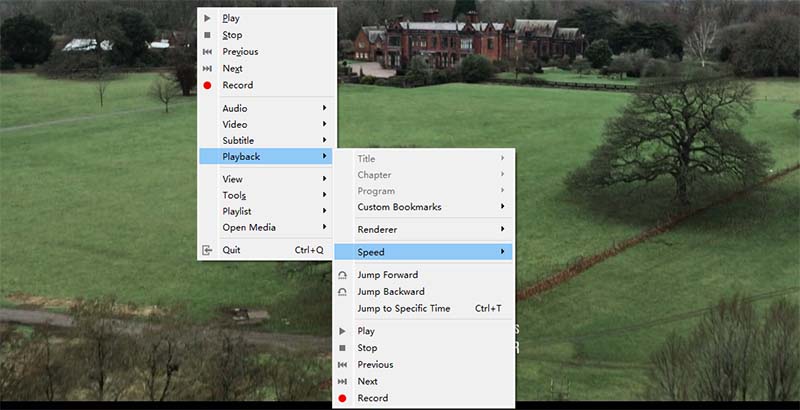
Adjust the playback speed.
Open Playback > Speed and choose a faster or slower setting. The exact menu labels may vary by version and operating system.
-
Return to normal speed when needed.
Use the Playback menu to select the normal-speed option, usually shown as 1.00x or Normal Speed.
| Playback speed | Best for |
|---|---|
| 0.75x | Slowing down dialogue or fast scenes |
| 1.00x | Normal playback |
| 1.25x | Watching a little faster while following the story |
| 1.50x | Moving through familiar or less detail-heavy sections |
| 2.00x | Rapid viewing when the video and audio remain understandable |
What about QuickTime or PotPlayer? These desktop players offer playback features that vary by version and platform. Check the relevant player's current menu or documentation to confirm whether your desired speed adjustment is supported.
Can a Browser Extension Change Disney+ Playback Speed?
Some browser extensions are designed to add playback-speed controls to HTML5 video players. Depending on the extension and browser, they may display controls for increasing or decreasing speed on supported websites.
However, an extension that works on one streaming service may not work on Disney+. Compatibility can change after website updates, and protected playback can prevent an extension from controlling the video as expected.
Limitations to consider
- Compatibility is not guaranteed: An extension may fail to detect the Disney+ player or may stop working after an update.
- DRM restrictions: Protected playback and browser security controls can limit third-party interaction.
- Browser-only support: Extensions generally won't add the same controls to Disney+ mobile apps or smart TVs.
- Privacy and security: Review the publisher, permissions, privacy policy, and user feedback before installing an extension.
- Playback issues: Speed changes may cause audio distortion, subtitle timing problems, or unstable playback.
If you try an extension, install it only from a trusted browser extension store, check its current Disney+ compatibility, and remove it if it requests unnecessary permissions or behaves unexpectedly.
Frequently Asked Questions
Final Thoughts
If you want to change the playback speed of Disney+ videos, start by checking the controls available in your current Disney+ app or browser. Disney+'s documented controls do not list a general speed setting, so the option may not be available in your setup.
For compatible local video files, VLC and other desktop media players can provide speed adjustments. Browser extensions may be worth testing on supported browsers, but compatibility with Disney+ is not guaranteed. Always respect copyright, applicable law, and the streaming service's terms.
Looking for a desktop video tool?
Explore TuneBoto Video One's supported services, output formats, and audio and subtitle options to see whether it fits your authorized video workflow.
Discover TuneBoto Video One