How to Transfer Amazon Music Playlist to Spotify
Want to move your favorite Amazon Music playlists to Spotify without rebuilding them song by song? Here are the practical methods to try, what to check before transferring, and how to fix missing tracks.

The Short Answer
You can transfer an Amazon Music playlist to Spotify with a supported import feature or a third-party playlist transfer service. The key is to match tracks in Amazon Music with the versions available in Spotify.
- Try Spotify's mobile import feature first if Amazon Music appears in the available source list.
- Use a transfer service such as TuneMyMusic or Soundiiz if you need another route or more control over the transfer.
- Use TuneBoto for a local-file workflow if you want to keep compatible audio files on your device and play them through Spotify's local files feature.
- Check the results because catalog matches and local-file imports can both have limitations.
Can You Transfer Amazon Music Playlists to Spotify?
Yes, provided you use a method that supports Amazon Music as the source and Spotify as the destination. Spotify's mobile import flow or a dedicated transfer service can search Spotify's catalog for matching tracks. A separate local-file workflow can instead keep compatible audio files on your device and make them available through Spotify's local files feature.
These approaches do different things: catalog-based services create a Spotify playlist from matches in Spotify's catalog, while local files stay on your device and are not added to Spotify's streaming catalog. File compatibility, source permissions, and Spotify's current local files requirements determine what you can keep and play offline.
Before choosing a method, consider three things:
- Catalog matching: The same song may appear under a different album, release, artist credit, or recording version.
- Transfer limits: Some services restrict the number of tracks per playlist or reserve batch transfers for paid plans.
- Content type: A playlist, liked songs, saved albums, and followed artists may be treated as separate types of music-library data.
Method 1: Try Spotify's Mobile Import Feature
Spotify provides a mobile workflow for importing music from supported services. This is a sensible first option because you can check whether your source service is available before signing up for another transfer tool.
Open Spotify on your phone
Install or update the official Spotify app, then sign in to the account where you want the transferred playlist to appear.
Find the import option
Open Your Library and look for the option to import music from other apps. The exact wording or location may change as Spotify updates its interface.
Choose Amazon Music if available
Follow the prompts to choose your source and authorize the relevant account connection. Only approve the access requested by the official flow or the transfer provider you intentionally selected.
Select music and complete the import
Choose the playlist or music-library items offered by the import workflow, then follow the on-screen instructions. When it finishes, open the resulting Spotify playlist and check the tracks.
The source list and available features can vary by app version, account, and region. Do not assume the option is available to every user.
Check Spotify's current instructions at Spotify Support. If Amazon Music is not offered, move to Method 2, Method 3, or the local-file option in Method 4.
Method 2: Transfer Amazon Music to Spotify with TuneMyMusic
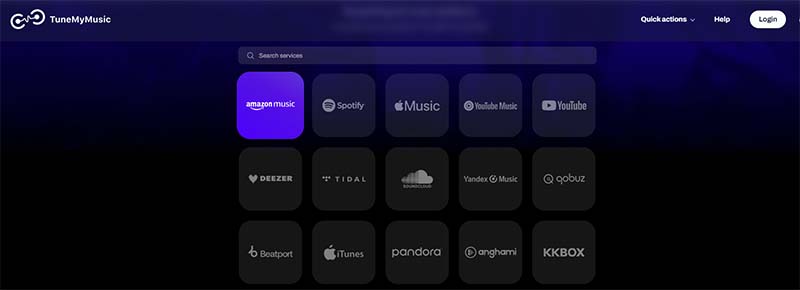
TuneMyMusic offers a dedicated Amazon Music-to-Spotify transfer page. It is a useful alternative when you want a browser-based workflow or need to review the results of a transfer.
Step 1: Open the dedicated transfer page
Visit the Amazon Music to Spotify transfer page. Confirm that Amazon Music is selected as the source and Spotify as the destination before continuing.
Step 2: Connect your Amazon Music account
Follow the provider's current instructions to connect the source service. Review the sign-in domain and requested permissions. Never send your password to another person or enter credentials on a page that you cannot verify.
Step 3: Choose the playlist or library content
Select the playlist you want to transfer, or another supported type of library content if the service offers it. For a large music library, check whether your chosen plan supports the number of items you need.
Step 4: Connect Spotify and start the transfer
Authorize the destination connection, review the selected content, and start the transfer. The service will attempt to match your source tracks with music available in Spotify.
Step 5: Review the transfer report
Check the completion report for tracks that could not be matched. If a missing-track report is available, save it so you can search for those songs manually later.
Method 3: Use Soundiiz as an Alternative
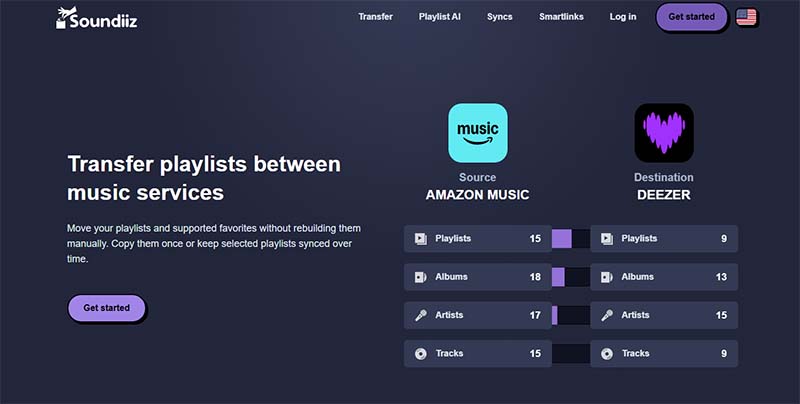
Soundiiz is another service for transferring playlists between supported music platforms. It can be useful if you prefer its workflow or need features that fit your music-library management routine.
How to use Soundiiz
- Open Soundiiz and check that Amazon Music and Spotify are currently supported for your intended transfer.
- Connect the source account and the destination account by following the service's authorization prompts.
- Choose the playlist you want to move and select Spotify as the destination.
- Review the tracks selected for transfer, then confirm the operation.
- Open Spotify when the transfer finishes and verify the playlist and any unmatched tracks.
Soundiiz has offered free and paid features with different limits, including differences between individual playlist transfers and batch operations. Plan details can change, so review its current official website before choosing a plan.
For a single playlist, start by checking the free options. If you need to transfer many playlists at once, compare the paid features and limits before paying.
Method 4: Use TuneBoto to Upload to Spotify
This method is different from playlist-transfer services. TuneMyMusic and Soundiiz look for corresponding tracks in Spotify's catalog; a local-file workflow is intended to keep compatible audio files on your device and make them playable through Spotify. The files are not uploaded to Spotify's streaming catalog, so they will not become Spotify catalog tracks or automatically be available to other listeners.

Amazon Music Converter
-
Download Amazon Music songs, albums, playlists & podcasts to local computer

-
Convert Amazon Music songs to MP3, AAC, WAV, FLAC, AIFF, ALAC
-
Keep ID3 tags; 100% original audio quality
-
10X download speed & batch download playlists/albums
-
Archive downloaded songs by album/artist


How the local-file workflow works
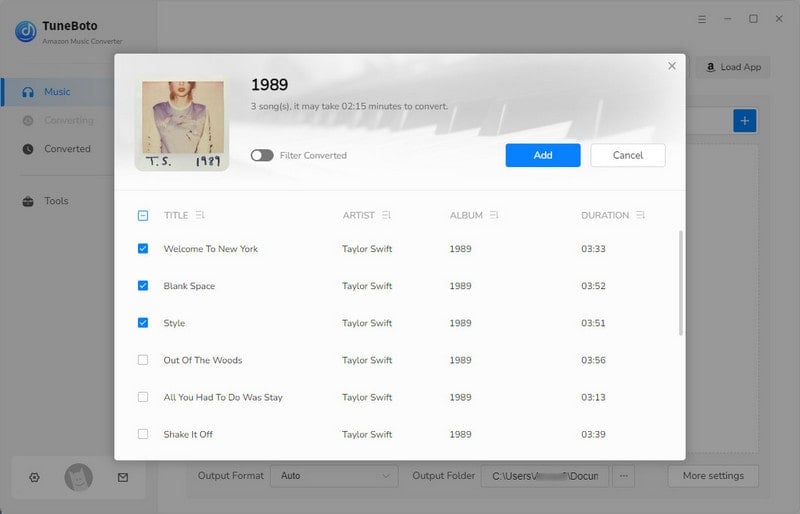
- Step 1: Install TuneBoto Amazon Music Converter and check the current product instructions and supported formats.
- Step 2: Choose the playlist and convert only content that you are authorized to retain and use. A subscription or offline-download entitlement does not by itself grant rights to make or keep separate audio files; follow applicable law and service terms.
- Step 3: In TuneBoto, choose Upload to Spotify and follow the prompts to send the converted files to Spotify's local files workflow.
- Step 4: In Spotify desktop, open Settings, turn on Show Local Files, and add or enable the folder containing the audio. Keep those files on your device and back them up if you want to retain your own copy.
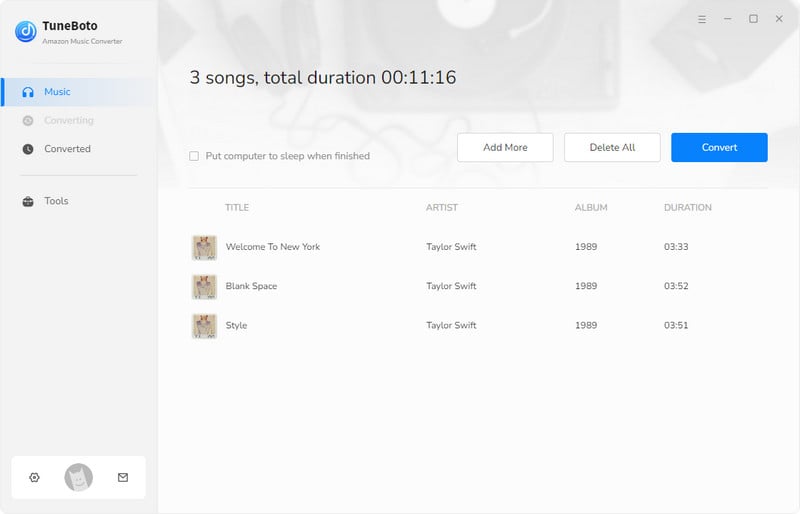
Use this option when your priority is keeping authorized local audio files. If you want a regular Spotify playlist made up of tracks from Spotify's catalog, use Method 1, 2, or 3 instead.
Can You Transfer Amazon Music Playlists to Spotify for Free?
Potentially. The cost depends on the import method, the number of tracks or playlists, and the current limits of the service you choose. You should not need to pay for a transfer tool until you have confirmed that its features match your needs.
| Method | Cost considerations | Best for | What to check |
|---|---|---|---|
| Spotify mobile import | May be available without buying a separate transfer tool | Users whose source service appears in the import list | Source availability, account access, and current app instructions |
| TuneMyMusic | Free usage and paid features may have different limits | Users who want a dedicated browser-based transfer workflow | Current free quota, track limits, and report features |
| Soundiiz | Free and paid plans have different capabilities | Users who want playlist management and transfer alternatives | Single-playlist limits, batch transfer, and current plan pricing |
| TuneBoto local files | Requires compatible software; check its current pricing and trial limits | Users who want to retain authorized audio files locally for playback | Supported tracks and formats, local storage, permissions, and Spotify device setup |
This table is a decision guide, not a guarantee of current pricing or feature availability. Check each provider's official website before beginning a transfer or purchasing software. TuneBoto local files are separate from a catalog-based playlist transfer and do not add tracks to Spotify's streaming catalog.
Which free option should you try first?
- For one playlist: Check Spotify's import feature first, then compare the free options offered by transfer services.
- For several playlists: Check the number of playlists and tracks allowed by each free plan. Batch transfers may require payment.
- For a large library: Compare the total cost, transfer limits, supported content types, and missing-track reporting before committing to a plan. For local files, also check storage needs and track compatibility.
How to Fix Missing Songs After Transferring
Some tracks may be missing even when the transfer service reports that the process has finished. A transfer tool needs to identify a suitable match in Spotify's catalog, and not every source track has an exact equivalent.
1. Check the transfer report
Look for a list of unmatched or skipped tracks. If the tool offers a CSV export, save it so you can compare the missing songs against your original playlist.
2. Search Spotify for the exact song
Copy the track title and artist name into Spotify's search box. Try searching for the album title as well. A song might be available in Spotify even if automatic matching failed.
3. Check alternate releases and versions
Compare details such as:
- Original release versus remastered release
- Studio recording versus live performance
- Album version versus single version
- Explicit versus clean version
- Featured artists and alternate artist spellings
If the original version is unavailable, decide whether an alternate recording is acceptable before adding it to the destination playlist.
4. Add available matches manually
Open the destination playlist in Spotify, search for each missing track, and add the correct result. This is usually the most direct way to repair a small number of omissions.
5. Check regional availability
Music catalogs differ by market and licensing arrangements. If a track is unavailable in your Spotify region, a transfer tool cannot make it appear in the catalog. Check availability through Spotify itself rather than assuming the transfer failed because of a technical error.
What Transfers and What Doesn't?
Playlist transfer tools generally recreate a selection of music in Spotify rather than copy the underlying audio files. The exact types of library data available for transfer depend on the provider and the services it supports.
| Content | What to expect |
|---|---|
| Playlists | Usually the primary transfer target, subject to source and destination support. |
| Songs in a playlist | Matched against Spotify's catalog; some may be missing or matched to a different version. |
| Playlist order | Check the resulting playlist because order preservation can depend on the tool and workflow. |
| Liked songs | May be supported separately from ordinary playlists. Confirm the provider's current capabilities. |
| Saved albums and followed artists | May require separate transfer options and are not guaranteed by a playlist-only operation. |
| Offline downloads | Amazon Music's downloaded audio is not copied into Spotify by a playlist transfer. |
| Local audio files | Compatible files may be added through Spotify's local files feature, but remain on your device and are not uploaded to Spotify's streaming catalog. Keep a separate backup if you want to retain them. |
| Offline playback | Local playback depends on compatible files remaining available and Spotify's device settings; syncing or playback on another device may have additional requirements. |
| Listening history and play counts | Generally not recreated as part of an ordinary playlist transfer. |
| Subscriptions and billing | Remain separate. A playlist transfer does not move, cancel, or replace either subscription. |
Does transferring a playlist delete the original?
A standard transfer is intended to create or update content in the destination service. It should not require you to delete your Amazon Music playlist. Nevertheless, check the selected tool's instructions and verify that your original playlist is still available before making changes to your source library.
What if you want offline music files instead?
That is a different task from transferring playlists. See Method 4 for the local-file workflow and TuneBoto Amazon Music Converter for its current features. Local files are not Spotify catalog uploads, and only convert or retain audio that you are authorized to use.
Checklist: Verify Your Spotify Playlist After Transfer
Before you consider the transfer complete, use this quick checklist:
Once the destination playlist has been checked, you can decide whether to keep both services or change your subscriptions. There is no need to cancel Amazon Music simply because you copied a playlist to Spotify.
Frequently Asked Questions
Final Thoughts
For a Spotify catalog playlist, start with Spotify's mobile import option, TuneMyMusic, or Soundiiz, then review matches and missing tracks. If you prefer local playback, Method 4 offers a different route: keep compatible, authorized files on your device and add them through Spotify's local files feature. Those files are not Spotify catalog uploads, and offline availability depends on your setup.
See the TuneBoto Amazon Music Converter page for current product details, and confirm that your intended use complies with the applicable terms and rights.
Sources and Further Reading
- Spotify Support — current Spotify import instructions and help resources.
- TuneMyMusic: Amazon Music to Spotify — dedicated transfer workflow.
- Soundiiz — playlist transfer and music-library management service.
- Spotify Support: Local Files — current instructions for playing audio files stored on your devices.
- FreeYourMusic: What Can Be Transferred? — information about supported content types.
Amazon Music, Spotify, TuneMyMusic, Soundiiz, and FreeYourMusic are trademarks or services of their respective owners. TuneBoto is not affiliated with or endorsed by these services. Features, interface labels, pricing, and availability may change. Always review the current terms and instructions of each service.
